

Tradovate Import Guide
There are two ways to get your Tradovate trades into Tradavity:
- Auto-Sync (recommended) — Connect your Tradovate account via OAuth for automatic trade imports every 15 minutes.
- CSV Import — Manually export and upload a file from Tradovate.
Option 1: Auto-Sync (Recommended)
Auto-Sync connects to Tradovate via OAuth and imports your trades automatically every 15 minutes. Works with both Demo and Live accounts.
Requirements
- A Tradavity PRO subscription
- A Tradovate brokerage account (Demo or Live)
Step 1: Choose Auto-Sync
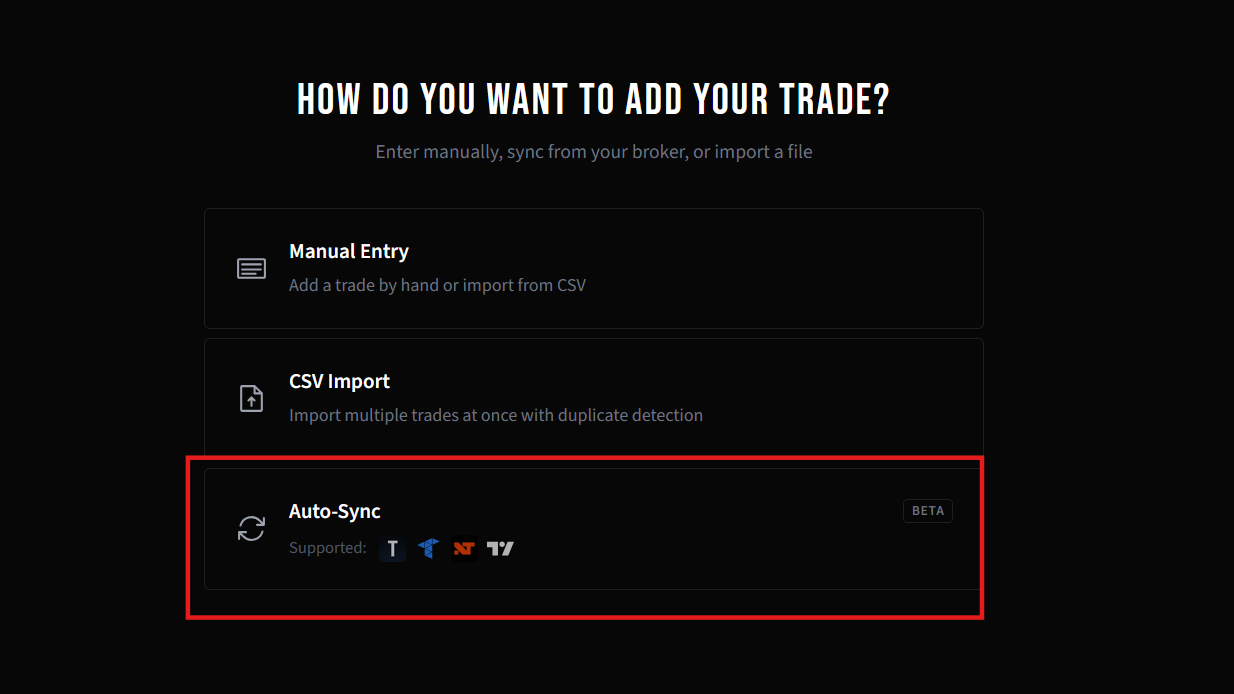
In Tradavity, click Add Trade in the sidebar. Select Auto-Sync to connect your broker.
Step 2: Select Tradovate
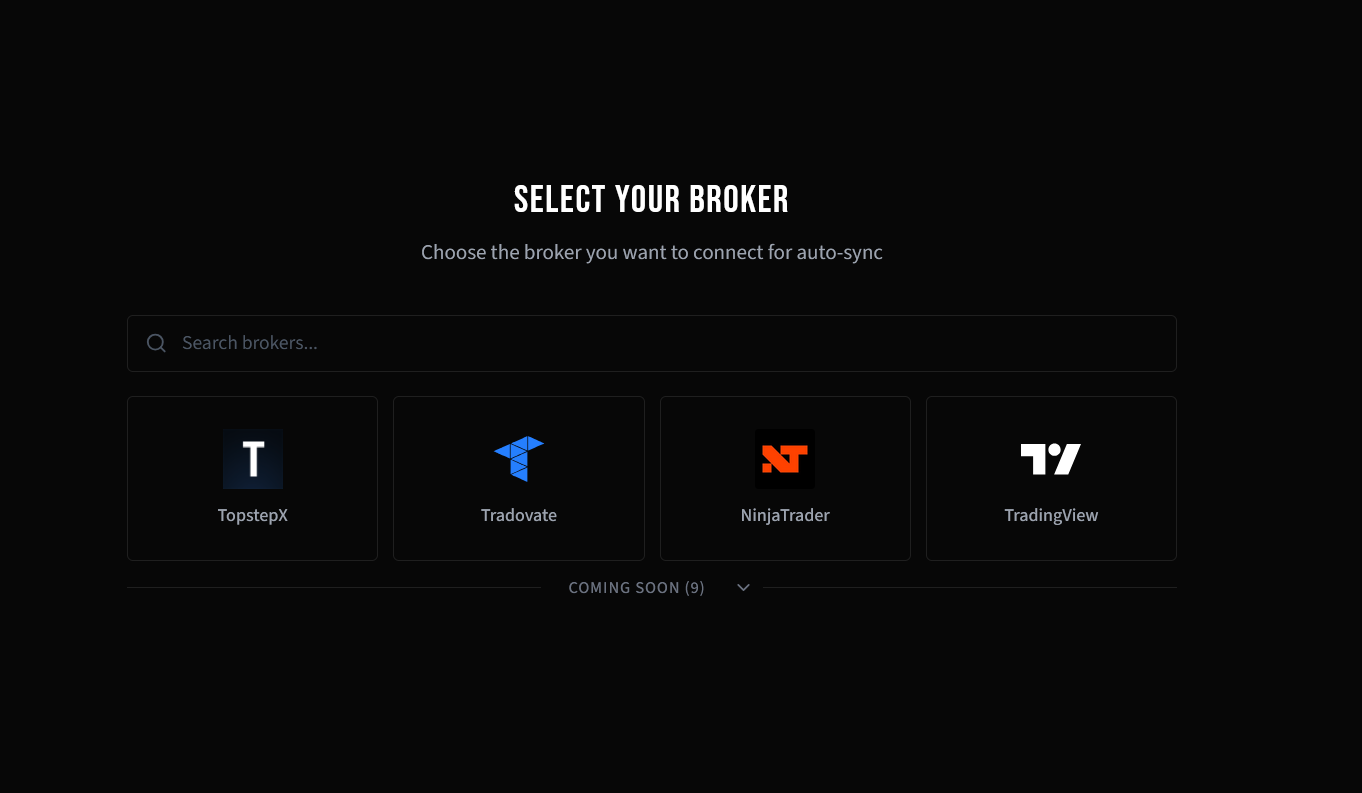
Pick Tradovate from the auto-sync broker picker.
Step 3: Choose Environment and Connect
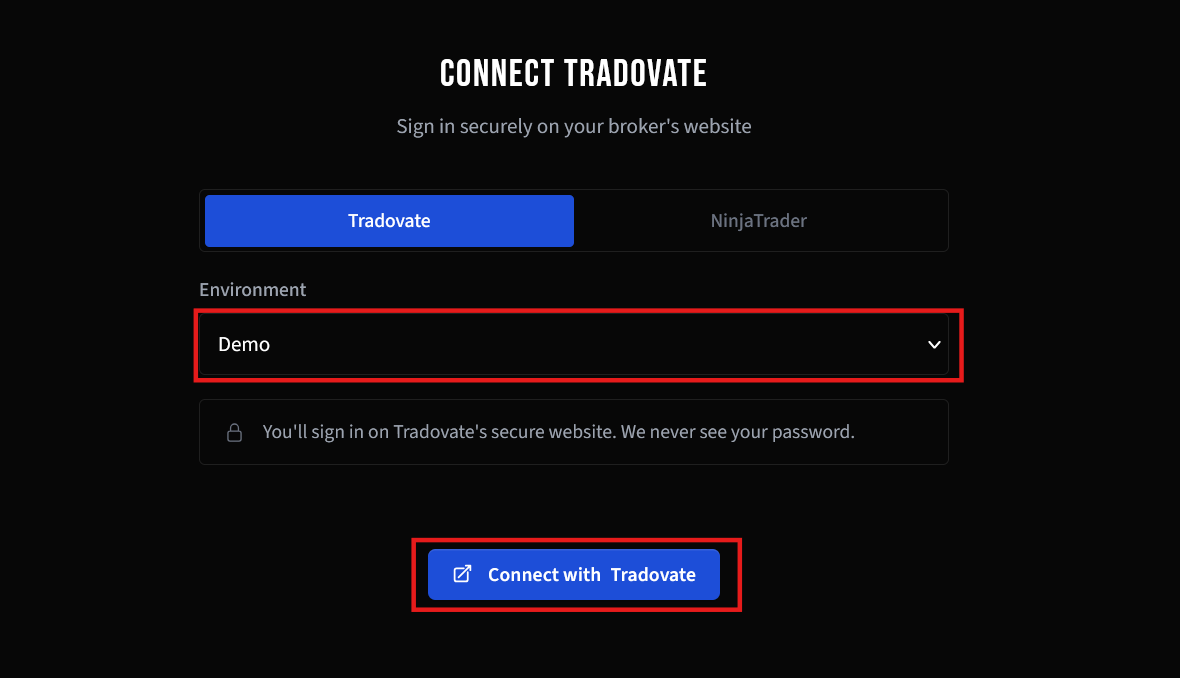
Make sure the Tradovate tab is selected, choose Demo or Live environment, then click Connect with Tradovate. A popup window will open.
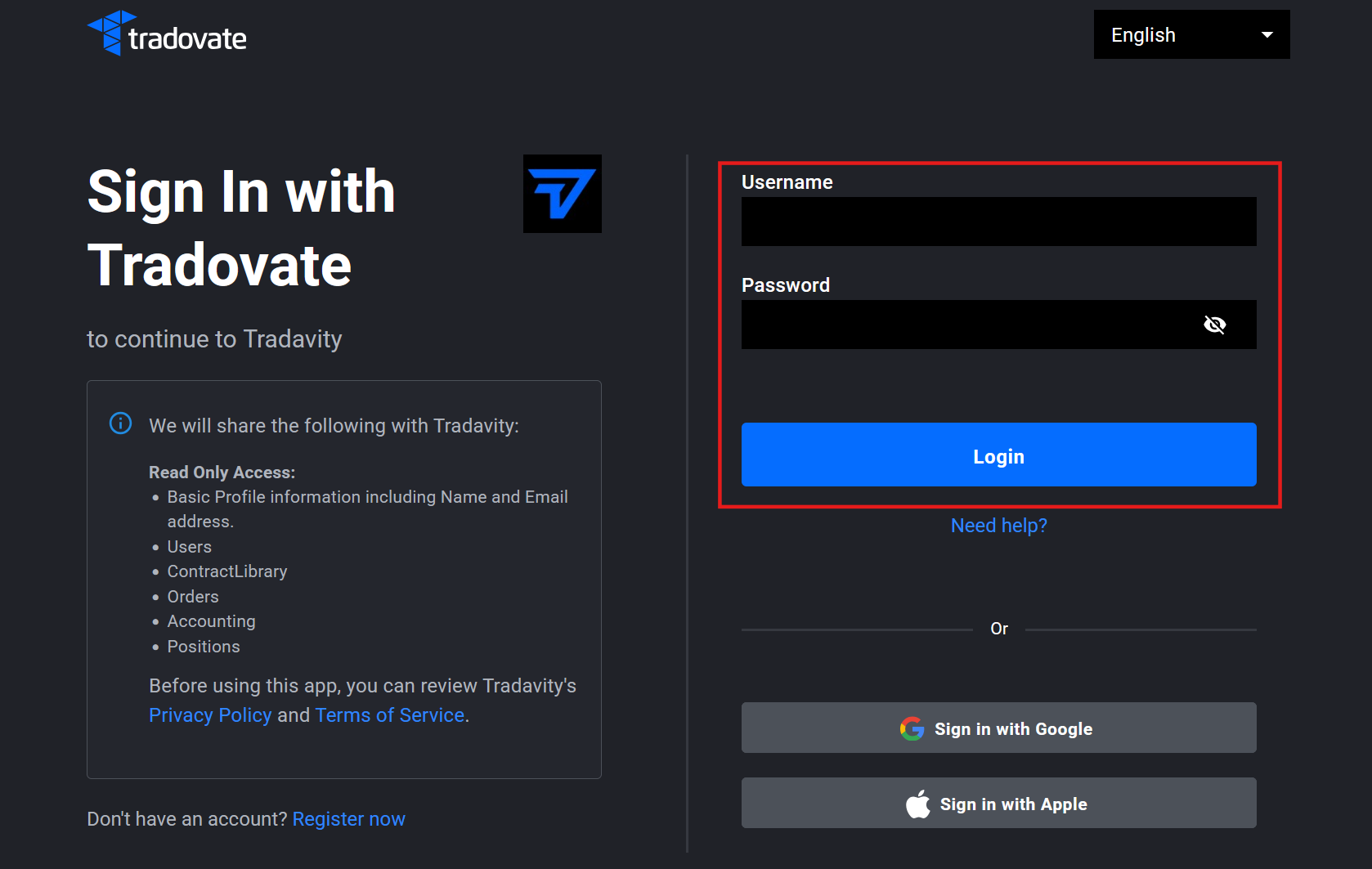
Step 4: Sign In on Tradovate
In the popup, sign in with your Tradovate credentials on Tradovate's secure website. The page shows exactly what Tradavity will have Read Only Access to. We never see your password.
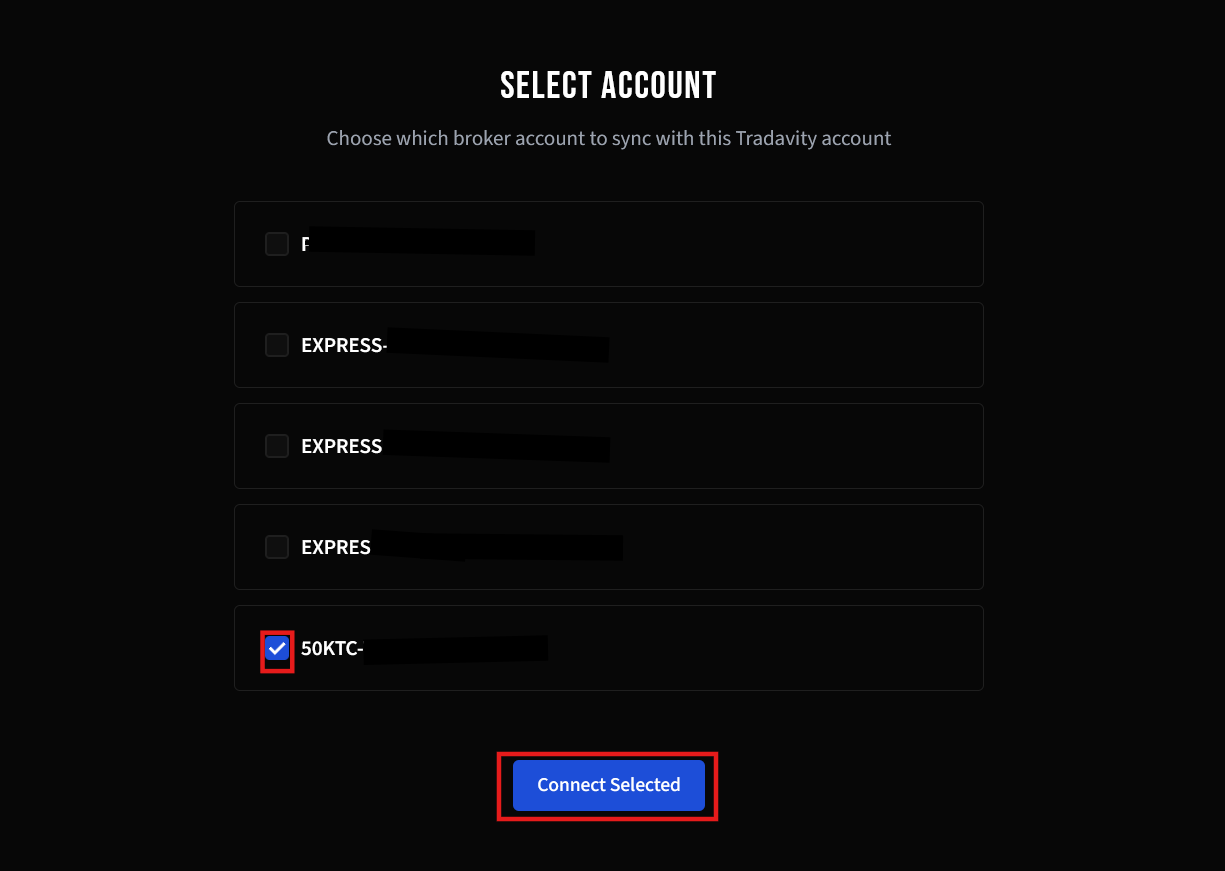
Step 5: Select Your Account
If you have multiple Tradovate accounts, select which one to sync and click Connect Selected.
Step 6: Connected
You'll see the sync overview with your active connection. Click Sync Now to trigger an immediate import, or wait for the automatic 15-minute sync. Use Add Connection to link additional accounts, or Disconnect to remove a connection.
What Gets Synced
- All closed trades with entry/exit prices and times
- P&L and fees (per trade)
- Contract and symbol details
How It Works
- Trades sync every 15 minutes automatically
- Click Sync Now any time for an immediate sync
- Duplicate detection prevents re-importing existing trades
- OAuth token auto-refreshes — no manual re-authentication needed
- If copy trading is configured, synced trades are automatically copied to target accounts
Option 2: CSV Import
If you prefer not to use Auto-Sync, you can manually export and import a CSV file from Tradovate.
Tradavity supports Position History, Fills, and Orders exports from Tradovate.
Step 1: Open Reports
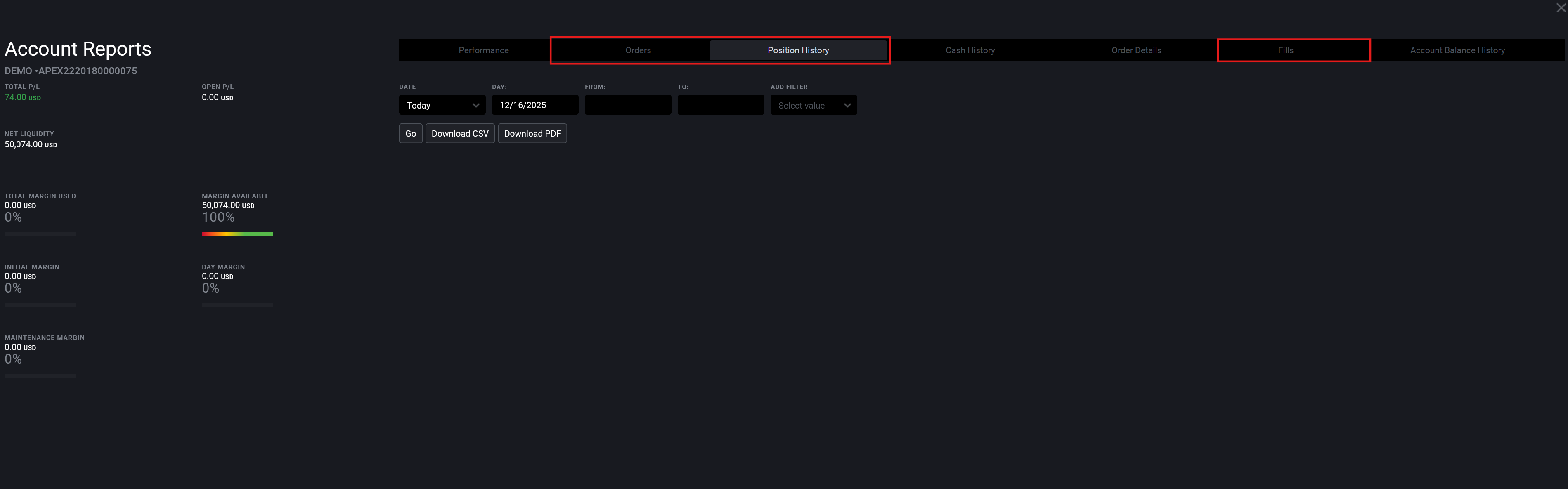
In Tradovate, click the Reports button to open the reports panel.

Step 2: Choose Export Type
Select the tab for the data you want to export:
- Position History - Pre-matched trades with P&L (recommended)
- Fills - Individual execution details
- Orders - Order-level data with status
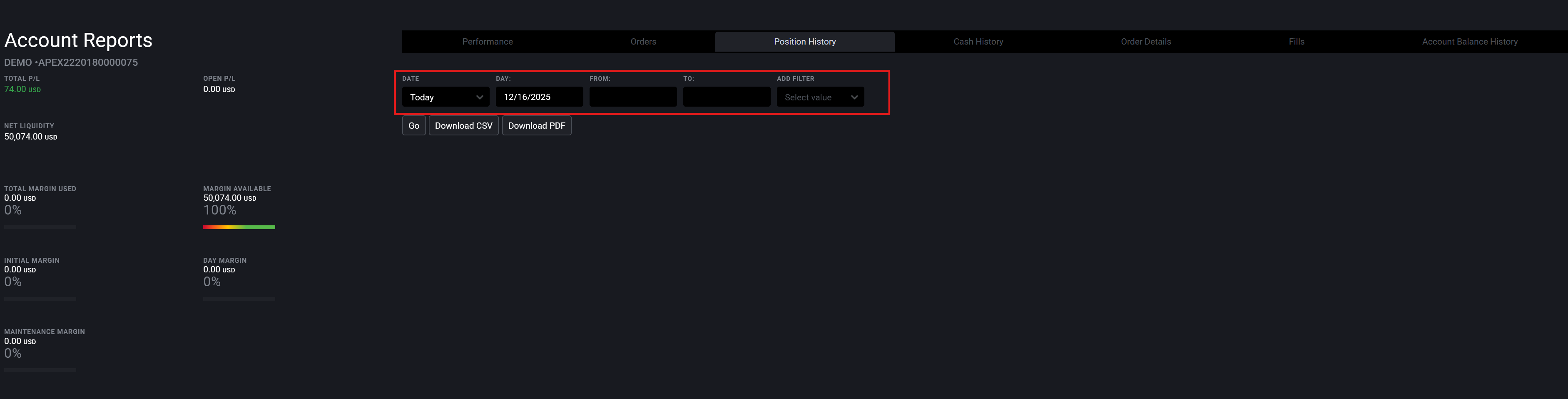
Step 3: Set Filters
Set your date range and any other filters for the trades you want to export.
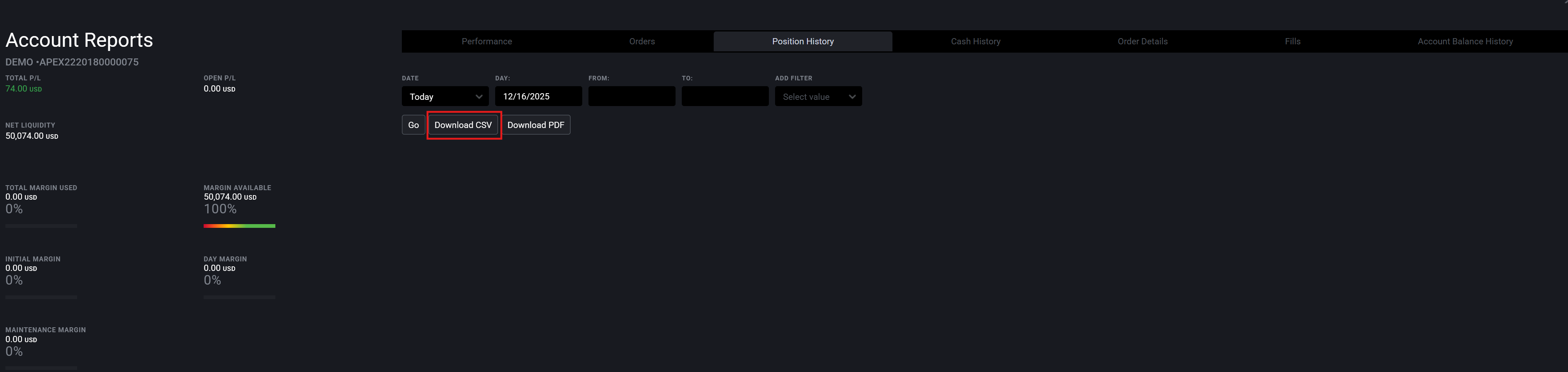
Step 4: Download as CSV
Click Download as CSV to save the file to your computer.
Importing into Tradavity
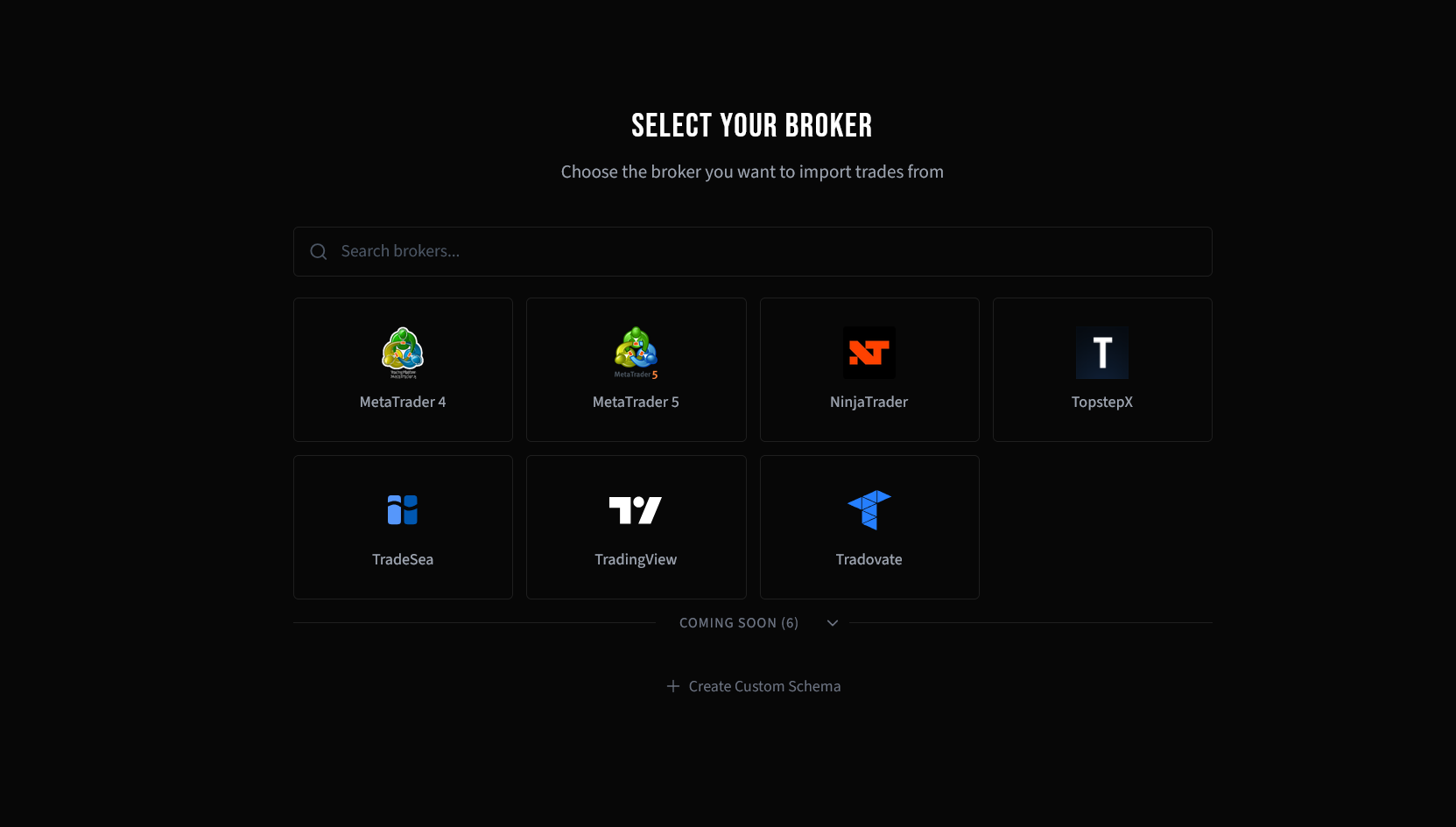
Step 5: Select Your Broker
In Tradavity, go to Settings → Accounts, click Sync on your account, then choose File Import. Select Tradovate from the broker list.
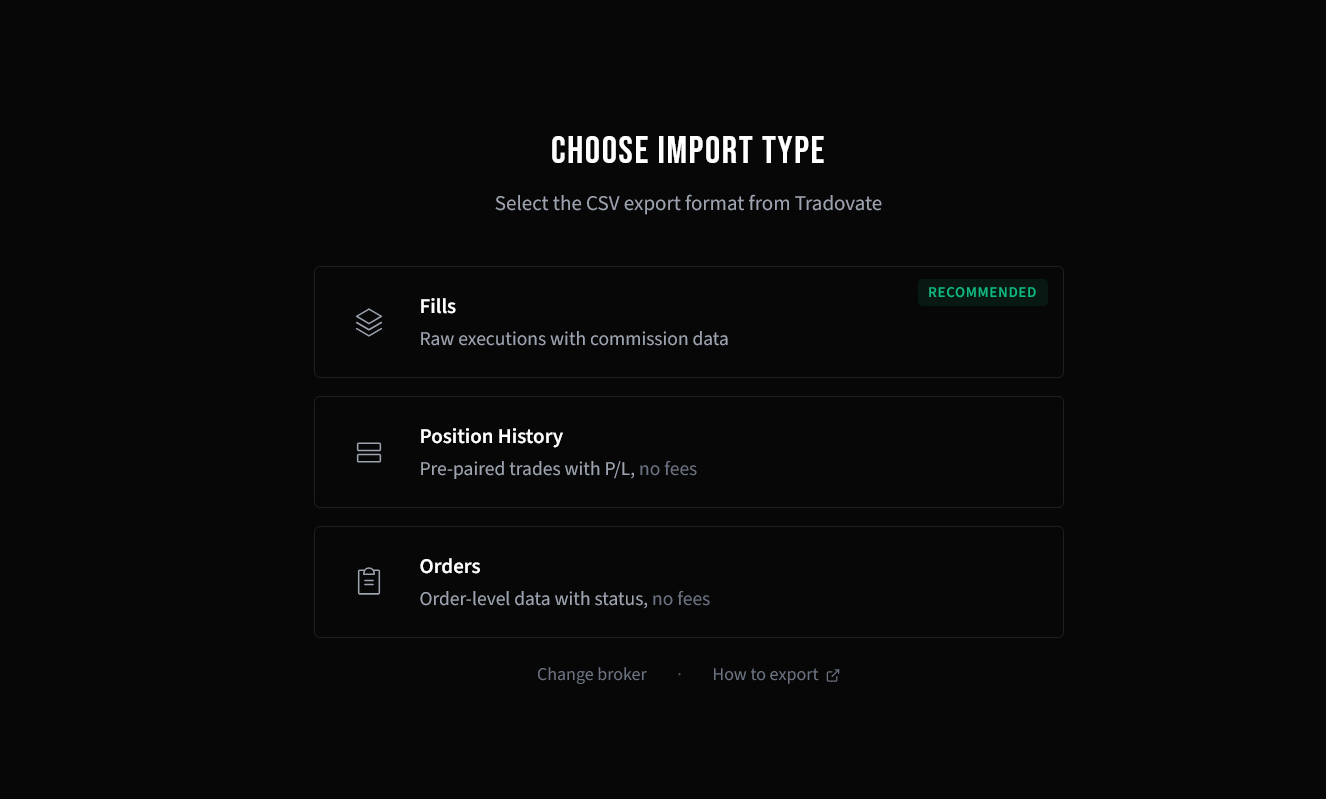
Step 6: Choose Import Type
Select the CSV export format that matches your file. Tradovate supports Position History (recommended — pre-matched trades with P&L), Fills (individual executions), and Orders (order-level data).
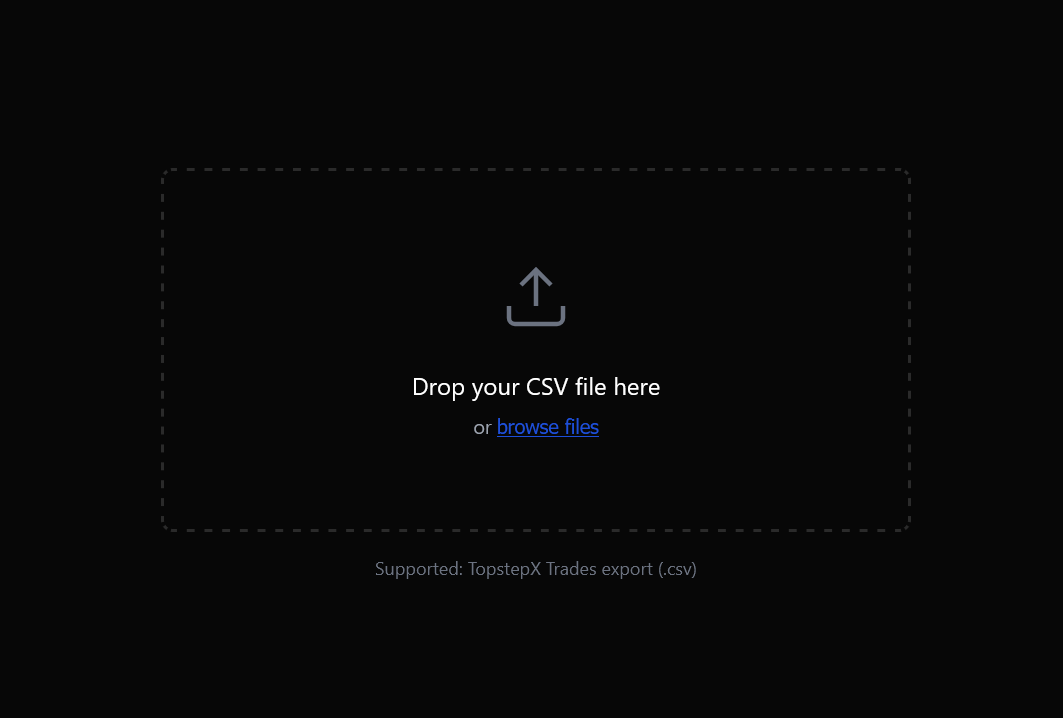
Step 7: Upload Your File
Drag and drop your CSV file, or click to browse and select it.
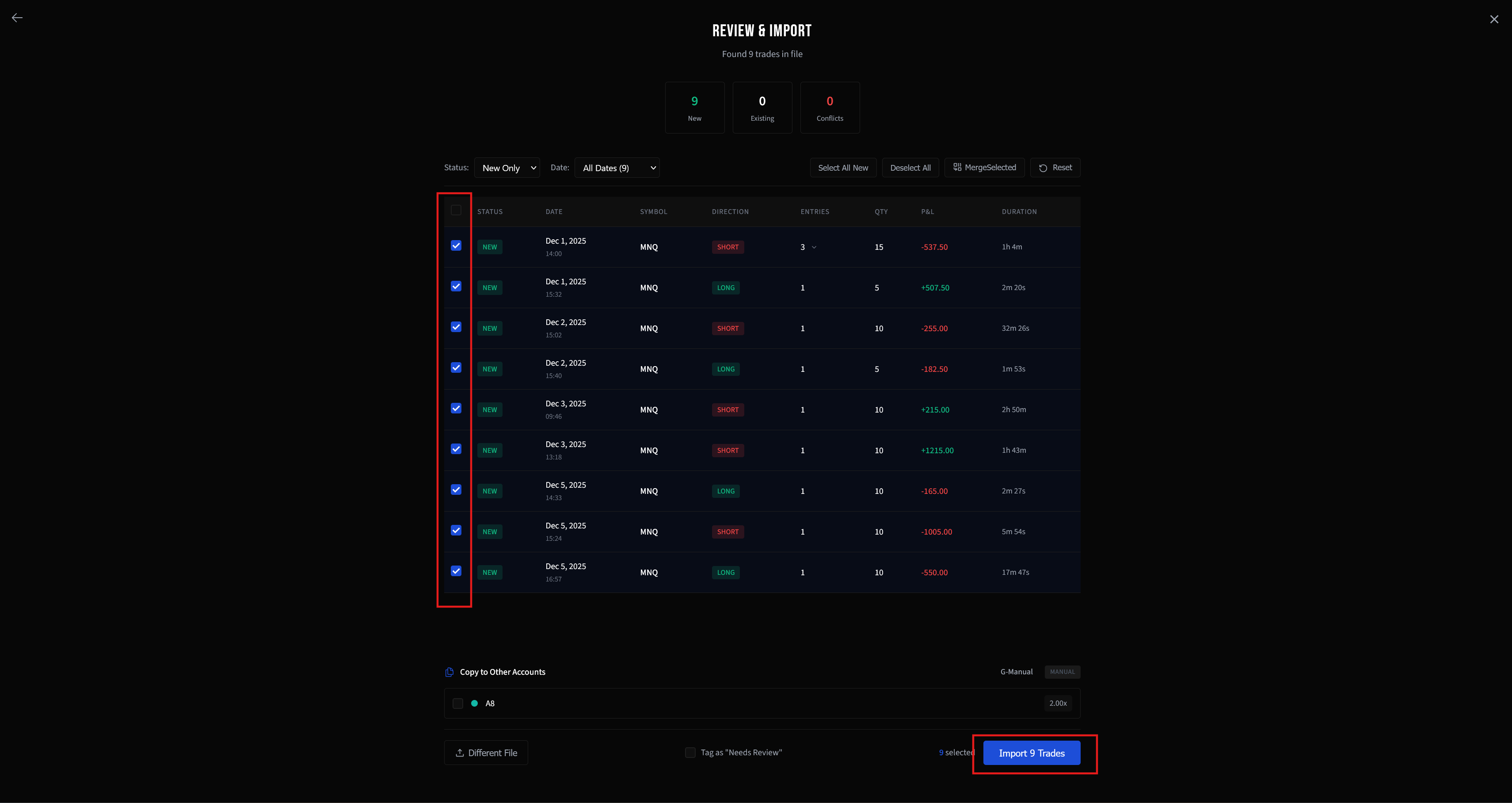
Step 8: Review and Import
Review the parsed trades in the preview. New trades are automatically selected. Check the details, then click Import to add them to your account.
Troubleshooting
Import fails
- Make sure you selected the correct export type matching your file
- Verify the file is CSV format
Missing commissions
Tradovate exports may not include commission data. You can add fees manually after import.
See CSV Import Troubleshooting for more solutions.
Data & Security Disclosure
What We Store
- An OAuth access token (stored encrypted with AES-256-CBC) that grants read-only access to your trade data
- No username, password, or other personal credentials
What We Access
- Your trade fills (execution prices, times, quantities)
- Your account information (account ID, name)
- Contract details (for symbol resolution)
What We Cannot Do
- We cannot place orders or execute trades on your account
- We cannot transfer funds or modify your account settings
- We cannot access your Tradovate password
Disconnecting
You can disconnect at any time from Settings → Accounts. Disconnecting immediately and permanently deletes the stored access token.
Tradavity is not affiliated with, endorsed by, or sponsored by Tradovate or NinjaTrader Group, LLC. This connection only grants read-only permission to access your trade history. We do not have any trading, transfer, or account modification permissions. Tradavity is not responsible for any actions taken on your Tradovate accounts, any data discrepancies, or service interruptions. Use of this integration is at your own risk and subject to Tradovate's Terms of Service. See our Risk Disclosure for full details.