

TradeSea Import Guide
This guide shows you how to export your trades from TradeSea and import them into Tradavity via CSV.
TradeSea currently only allows exporting today's orders. Historical trade data cannot be exported via CSV. If you need to import older trades, you would need to enter them manually. This is a TradeSea platform limitation, not a Tradavity one.
Tradavity supports the Orders export from TradeSea. Only filled orders are imported — cancelled, rejected, and open orders are automatically filtered out.
Exporting from TradeSea
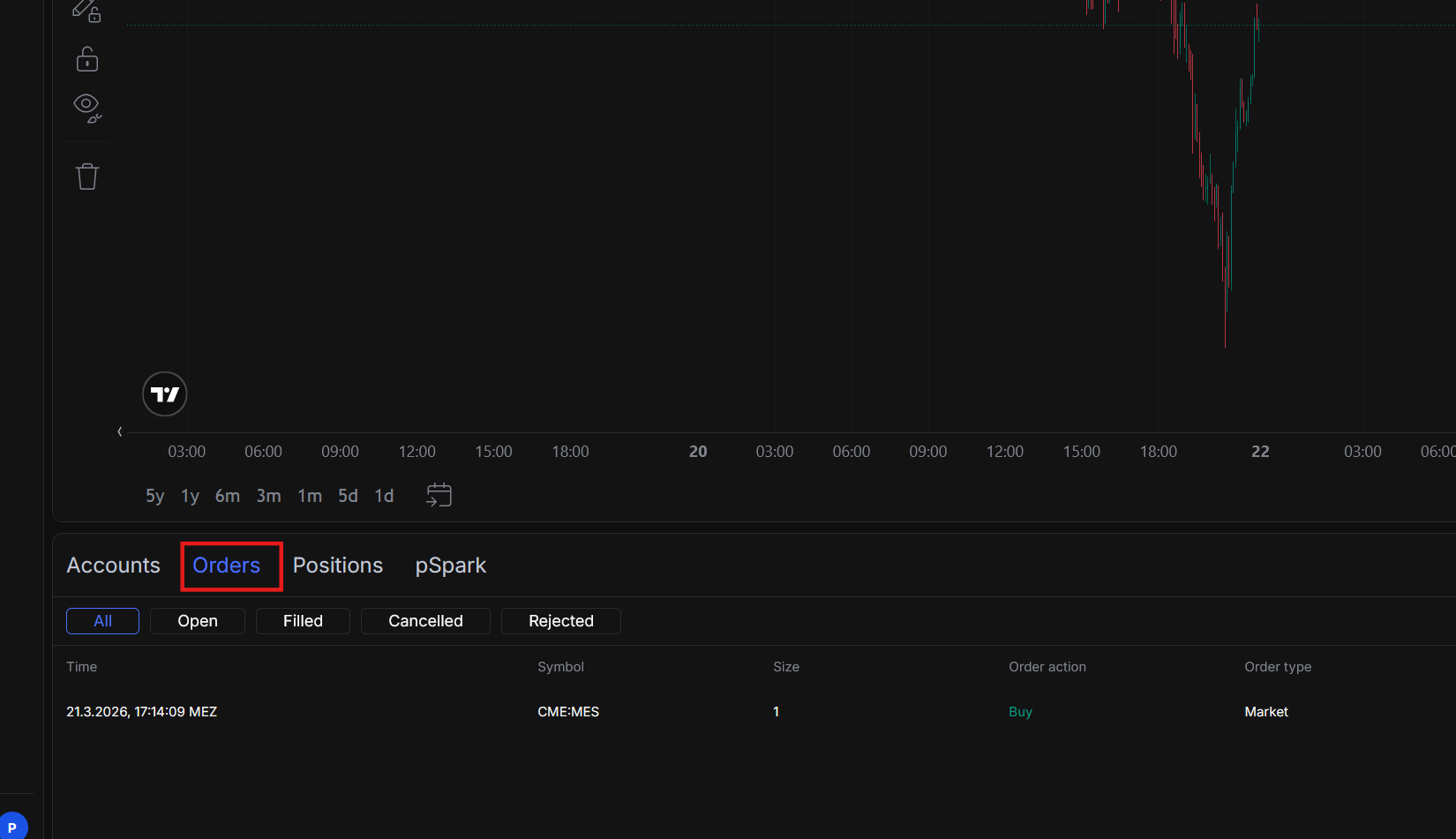
Step 1: Open the Orders Tab
In TradeSea, open the bottom panel and click the Orders tab. You'll see your orders listed with columns for Time, Symbol, Size, Order action, and Order type.
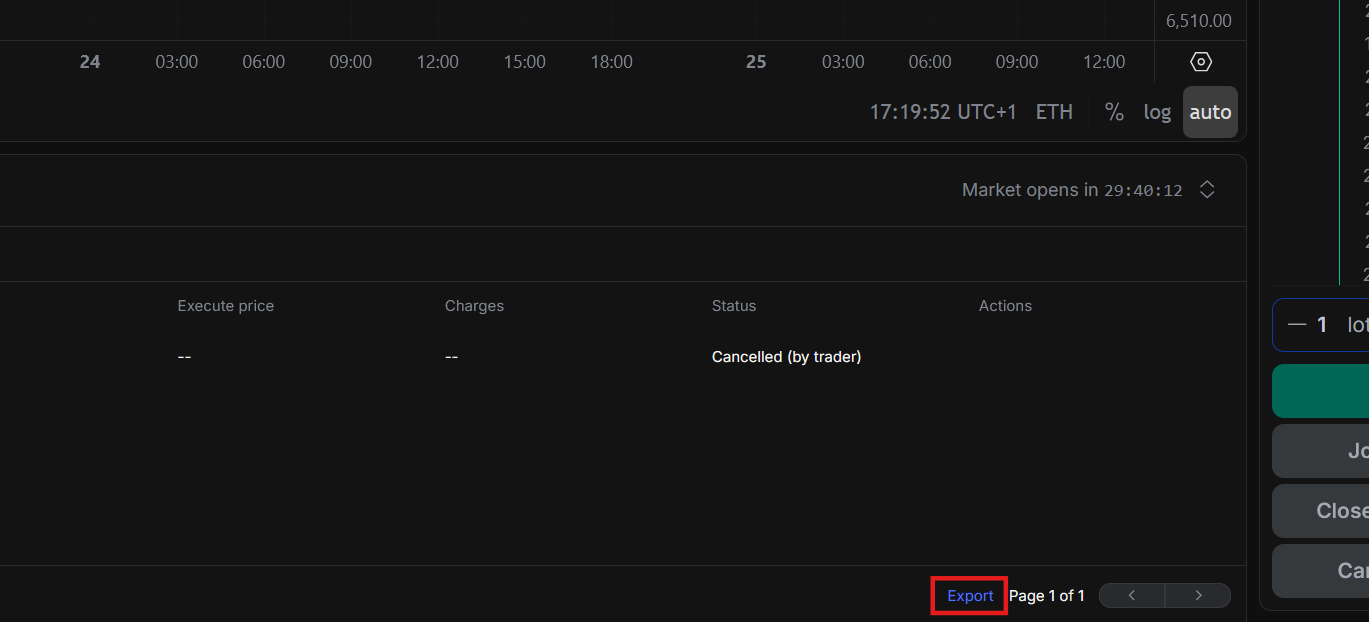
Step 2: Click Export
Click the Export button at the bottom of the orders panel. The CSV file will download to your computer.
Importing into Tradavity
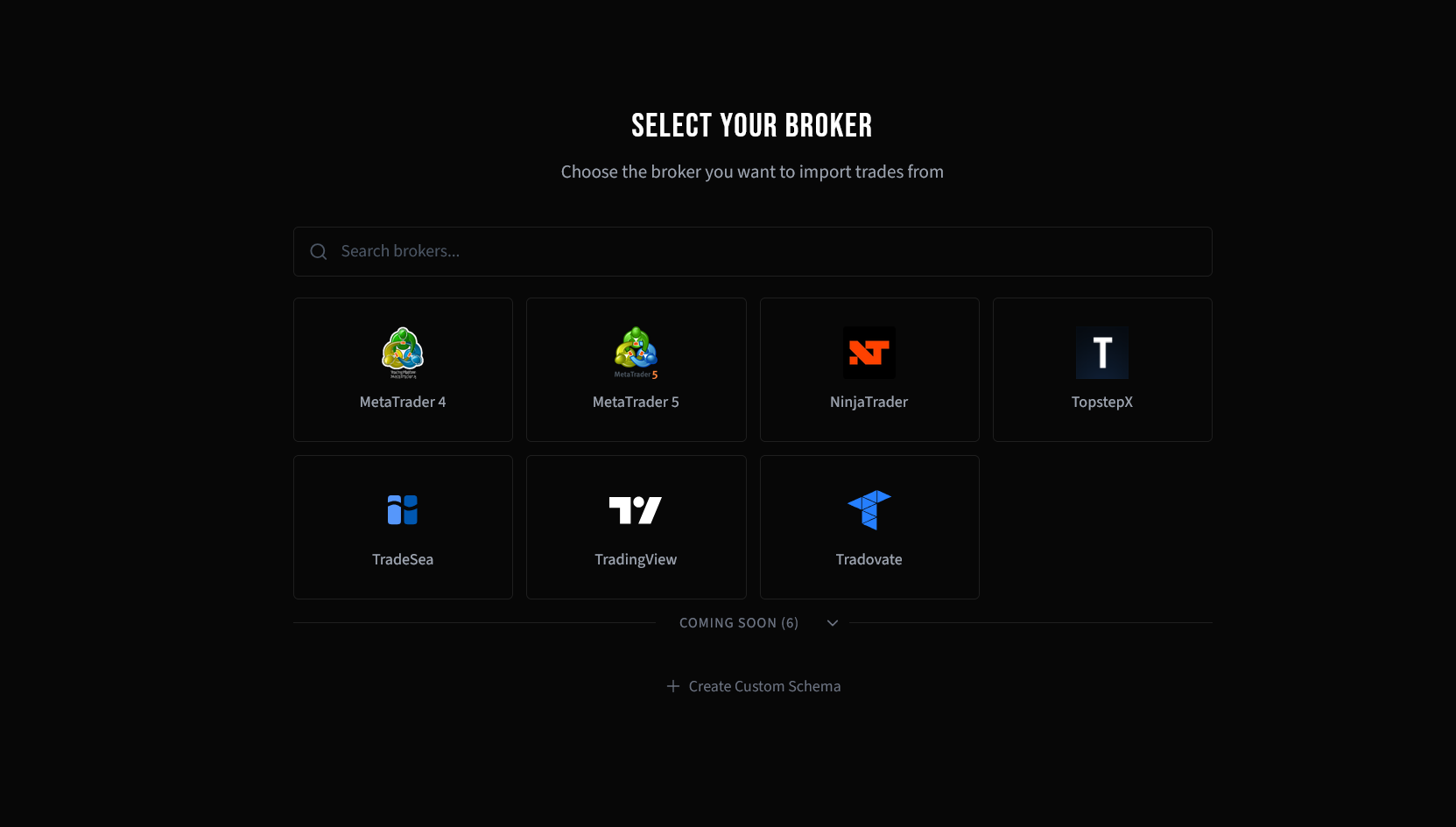
Step 3: Select Your Broker
In Tradavity, go to Settings → Accounts, click Sync on your account, then choose File Import. Select TradeSea from the broker list.
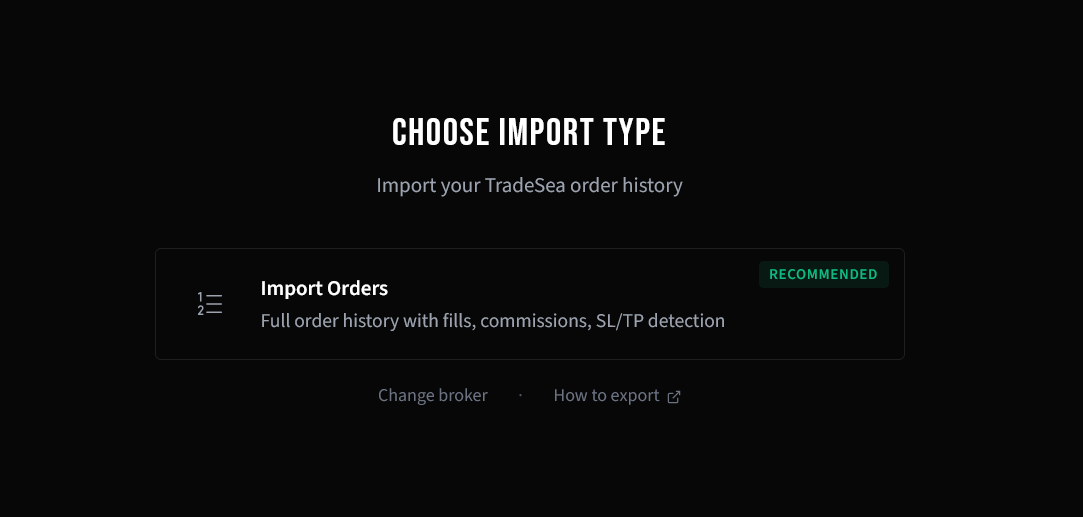
Step 4: Choose Import Type
TradeSea uses a single export format (Orders). This is automatically selected.
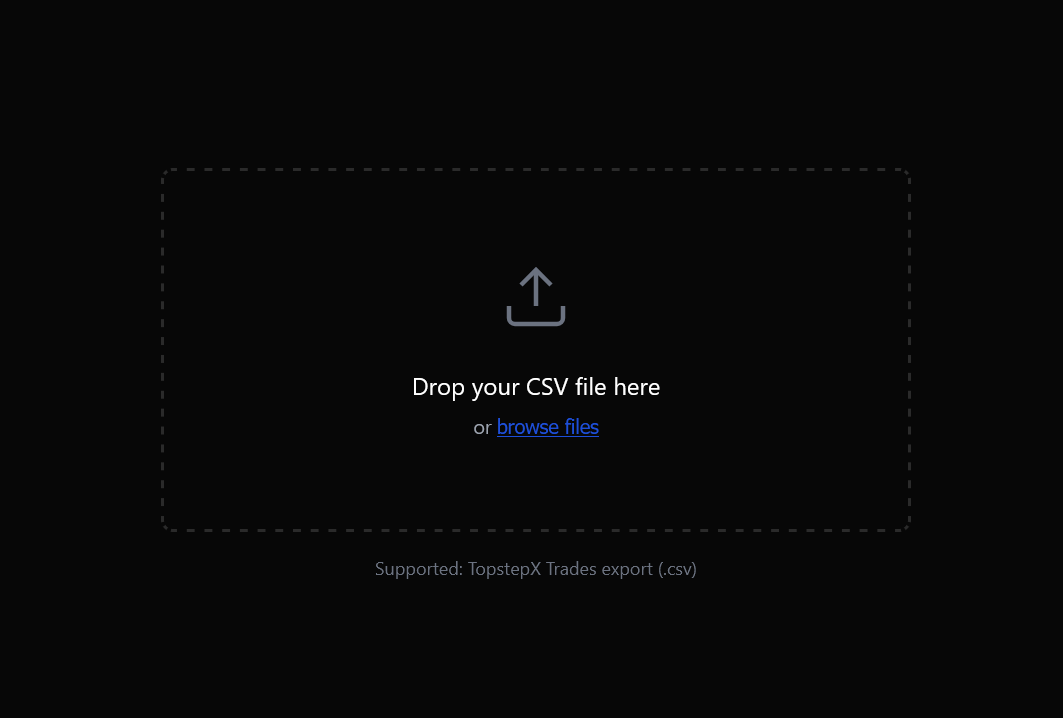
Step 5: Upload Your File
Drag and drop your CSV file, or click to browse and select it.
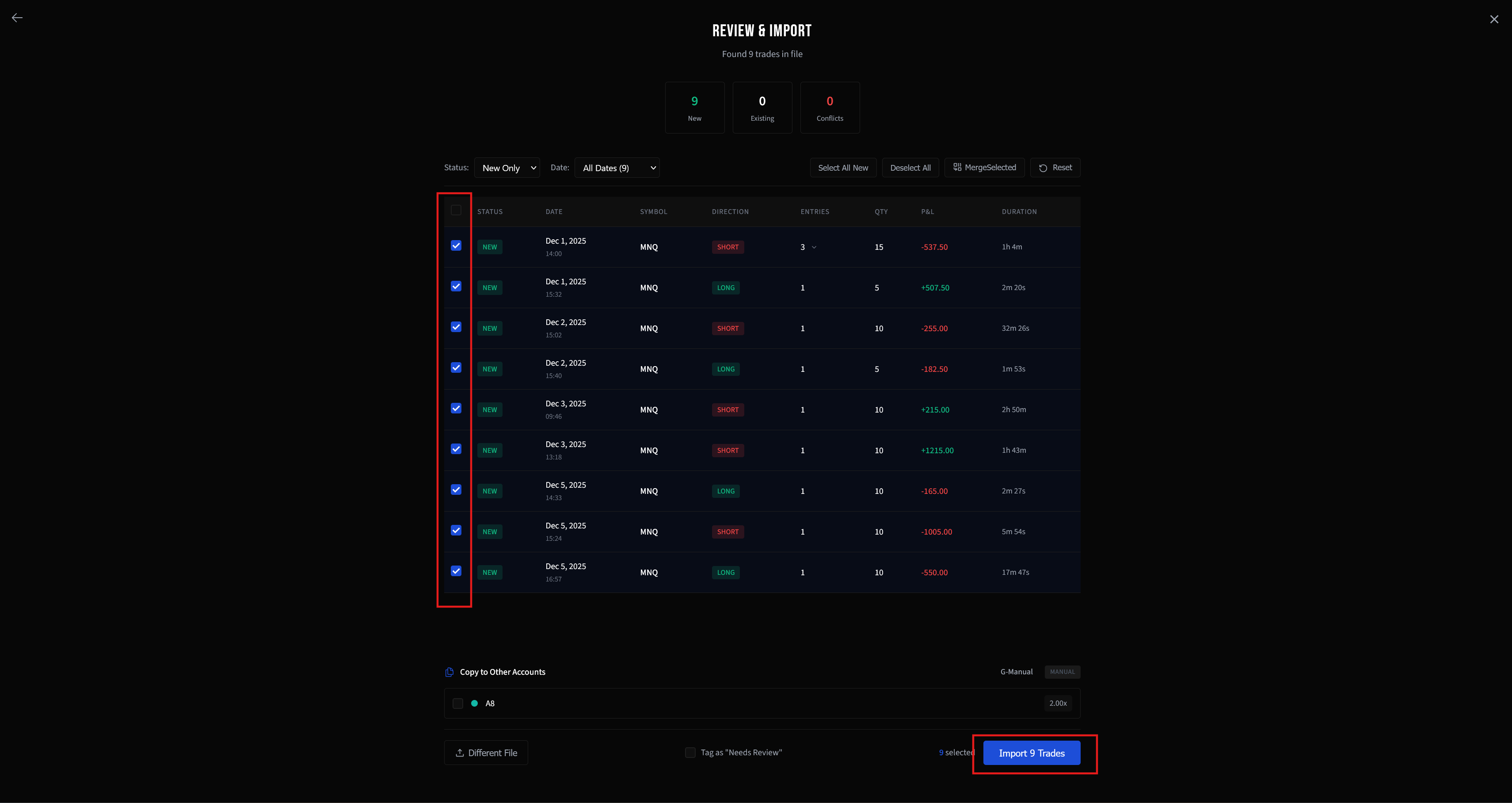
Step 6: Review and Import
Review the parsed trades in the preview. New trades are automatically selected. Check the details, then click Import to add them to your account.
CSV Format Details
The TradeSea Orders export contains the following columns:
| Column | Description |
|---|---|
| Time | Order timestamp in DD.M.YYYY, HH:MM:SS format with timezone abbreviation |
| Symbol | Contract symbol (e.g. CME:MES, CME:MNQ) |
| Qty | Number of contracts |
| Side | Buy or Sell |
| Order Type | Market, Limit, or Stop |
| Limit Price | Limit price (for limit orders) |
| Stop Price | Stop price (for stop orders) |
| Avg Price | Fill price (only present for filled orders) |
| Commission | Trading fees |
| Status | Filled, Open, Cancelled, Rejected, Expired |
What Gets Imported
- Only Filled orders are imported — all other statuses are ignored
- Orders are grouped into complete trades using flat-to-flat logic
- P&L is calculated from entry/exit fill prices with correct contract multipliers
- Commissions are imported per trade
- SL and TP prices are detected from cancelled Stop/Limit orders near the trade
- Exchange prefixes are stripped automatically (CME:MES → MES)
Timezone Handling
TradeSea exports include a timezone abbreviation (e.g. MEZ, CET, EST) which varies by your system locale. On first import, Tradavity will ask you to confirm your TradeSea export timezone. This setting is saved and applied to all future imports.
Troubleshooting
Only today's trades can be exported
This is a known TradeSea limitation. The platform only allows exporting the current day's order history. To journal older trades, you would need to export daily or enter historical trades manually.
Since TradeSea only exports today's orders, make it a habit to export and import at the end of each trading day. Duplicate detection ensures you never import the same trade twice.
Import shows 0 trades
- Make sure your file contains Filled orders (not just Open or Cancelled)
- Check that you have both entry and exit orders — open positions without exits cannot form complete trades
- Verify the file is CSV format
Wrong timezone on trades
If trade times appear offset, go to Settings → Accounts → Sync and re-import. You'll be prompted to set the correct export timezone for TradeSea.
Missing SL/TP
SL and TP are detected from cancelled Stop/Limit orders in the same export. If you don't use stop-loss or take-profit orders, these fields will be empty. You can add them manually after import.
See CSV Import Troubleshooting for more solutions.
Tradavity is not affiliated with, endorsed by, or sponsored by TradeSea. Use of this integration is at your own risk. See our Risk Disclosure for full details.