

TopStepX Import Guide
There are two ways to get your TopStepX trades into Tradavity:
- Auto-Sync (recommended) — Connect your TopStepX account via API for automatic trade imports with full history, SL/TP prices, and fees.
- CSV Import — Manually export and upload a file from TopStepX.
Option 1: Auto-Sync (Recommended)
Auto-Sync connects to TopStepX via the ProjectX API and imports your trades automatically every 15 minutes. Unlike Tradovate (which only syncs today's trades), TopStepX Auto-Sync imports your full trade history with SL/TP prices and fees.
Requirements
- A Tradavity PRO subscription
- A ProjectX API subscription ($14.50/mo with promo code topstep)
Part A: Set Up ProjectX API
Step 1: Open TopStepX API Settings and Link ProjectX
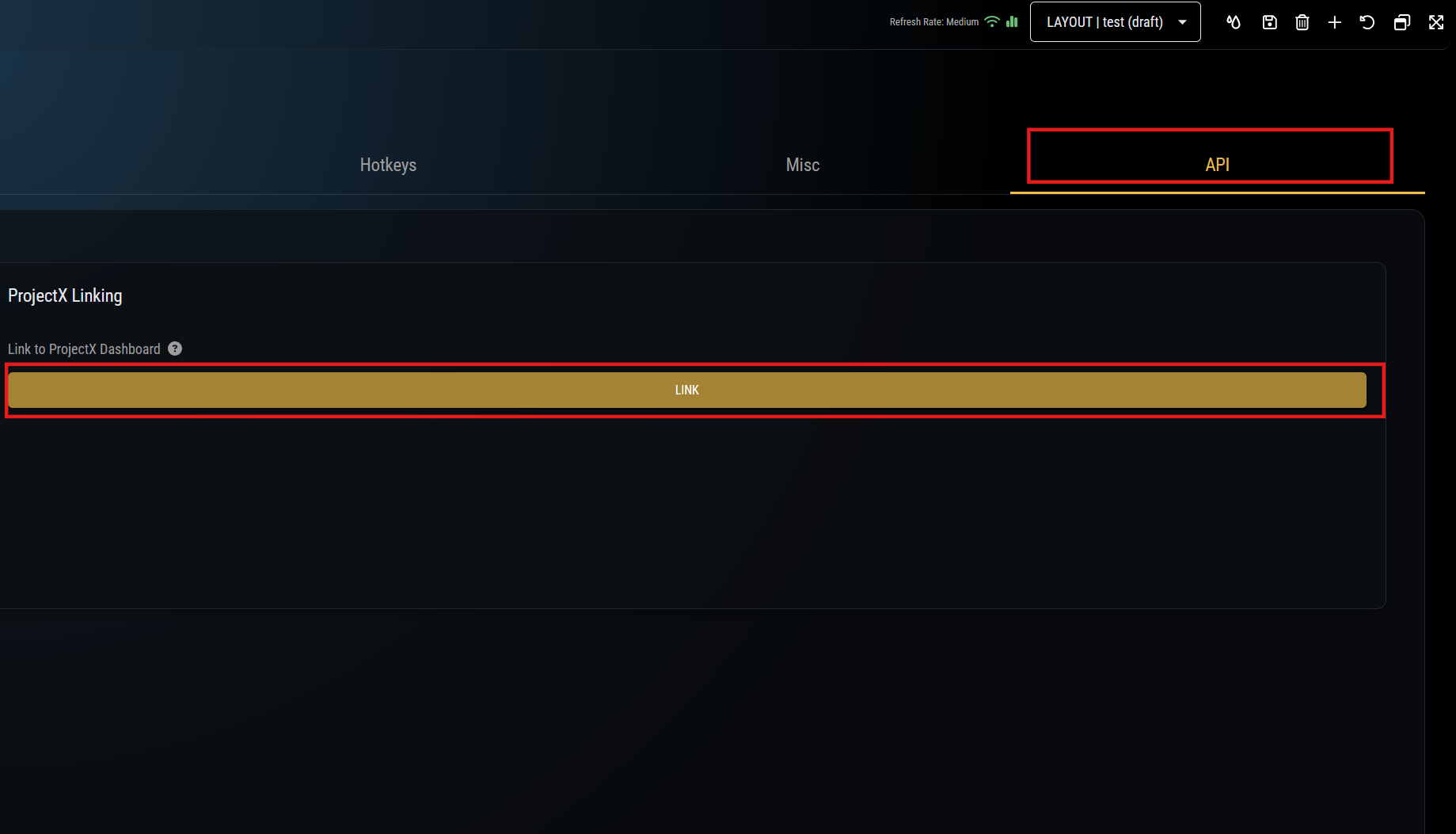
Log into TopStepX and go to Settings → API. If your ProjectX account isn't linked yet, click Link under ProjectX Linking.
Step 2: Subscribe to ProjectX API
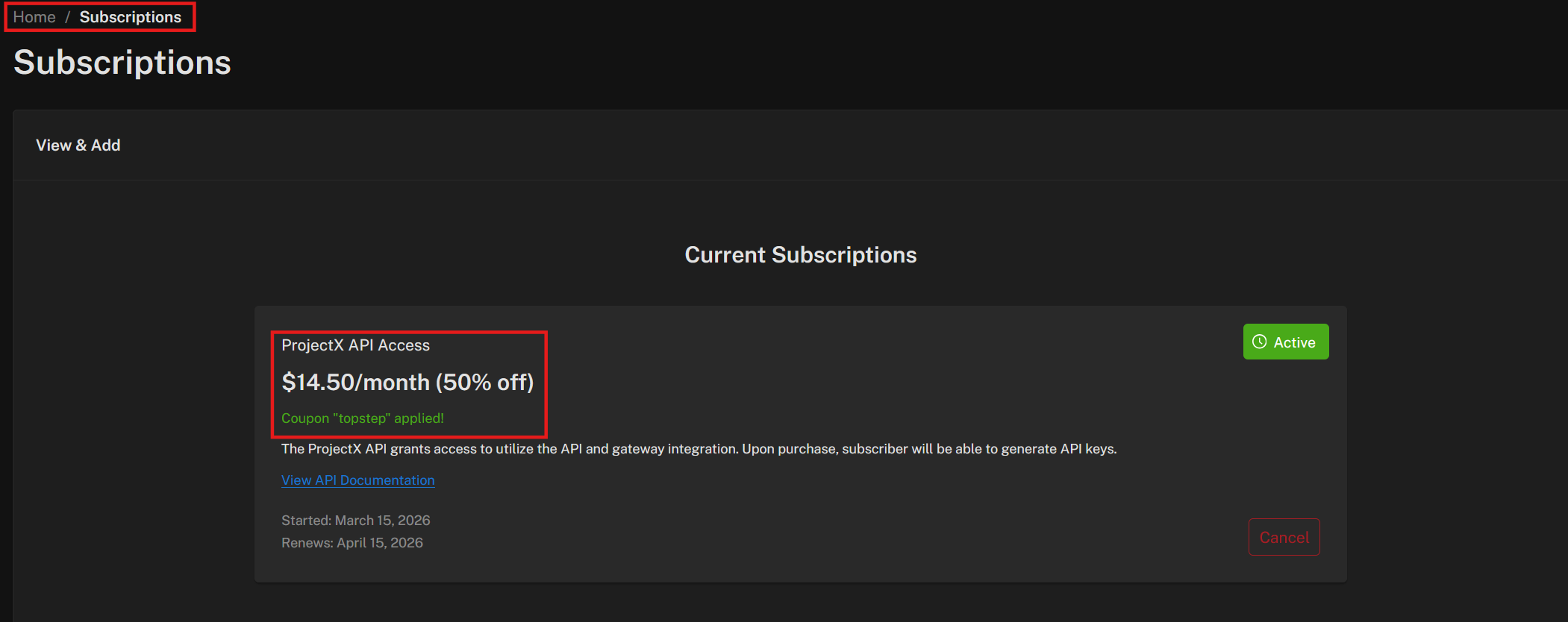
On the ProjectX dashboard, go to Subscriptions and subscribe to ProjectX API Access. Use promo code topstep for 50% off ($14.50/mo).
Step 3: Generate Your API Key
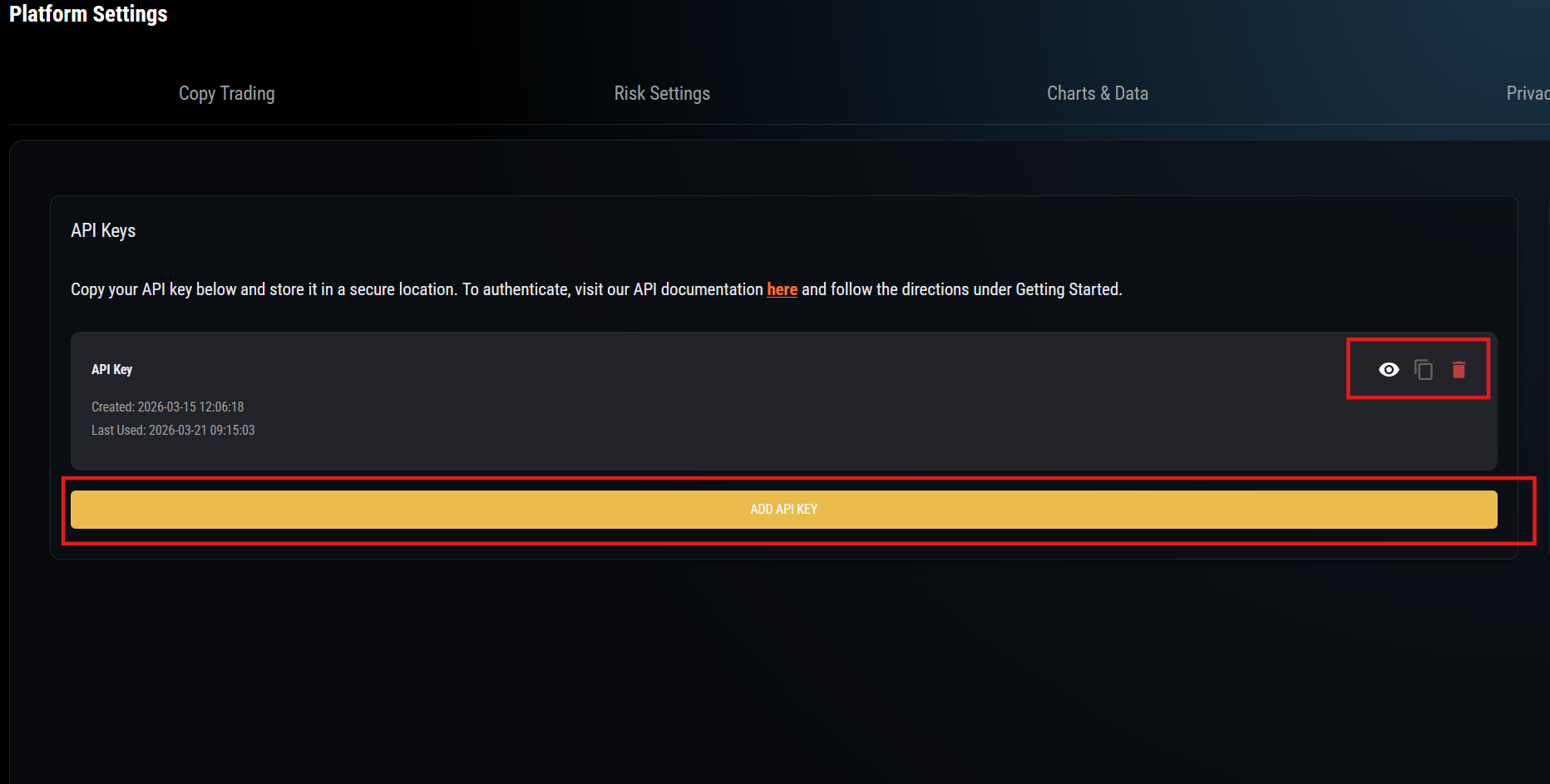
Back in TopStepX under Platform Settings → API Keys, click Add API Key to generate a new key. Copy the API key using the copy button.
Use your TopStepX login username (the one you use to log into TopStepX), not your ProjectX dashboard username. These may be different.
Part B: Connect in Tradavity
Step 4: Choose Auto-Sync
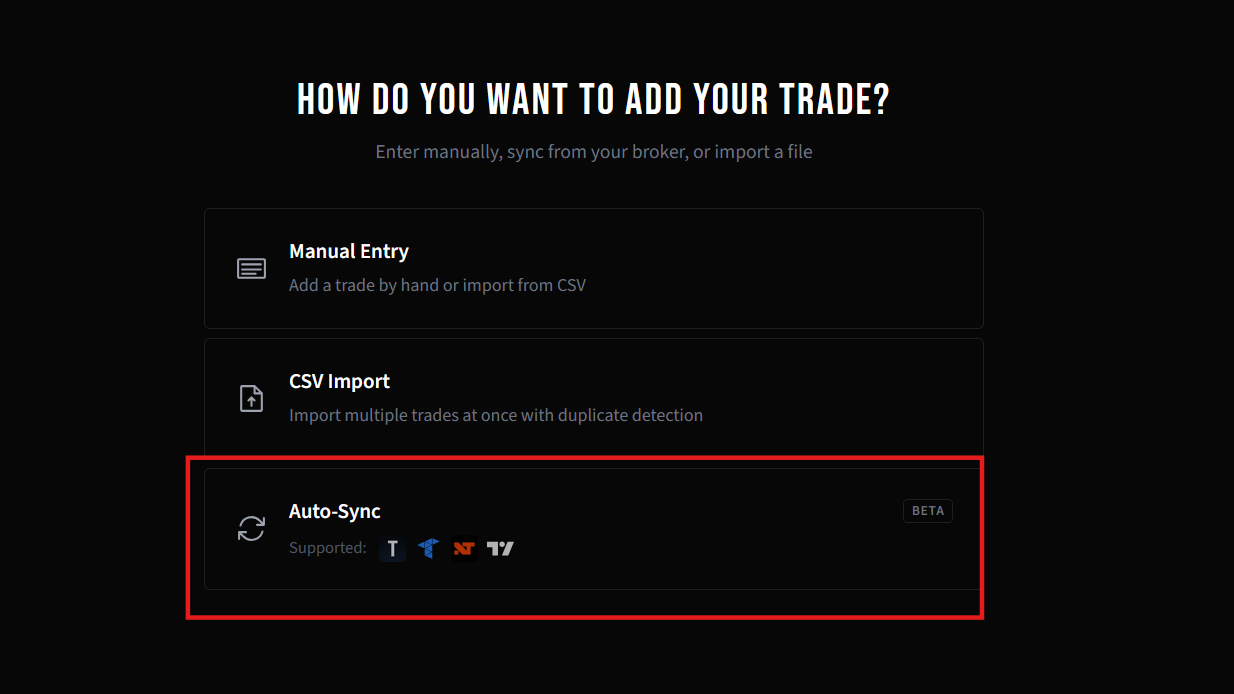
In Tradavity, click Add Trade in the sidebar to go to the new trade page. Select Auto-Sync to connect your broker for automatic imports.
Step 5: Select TopStepX
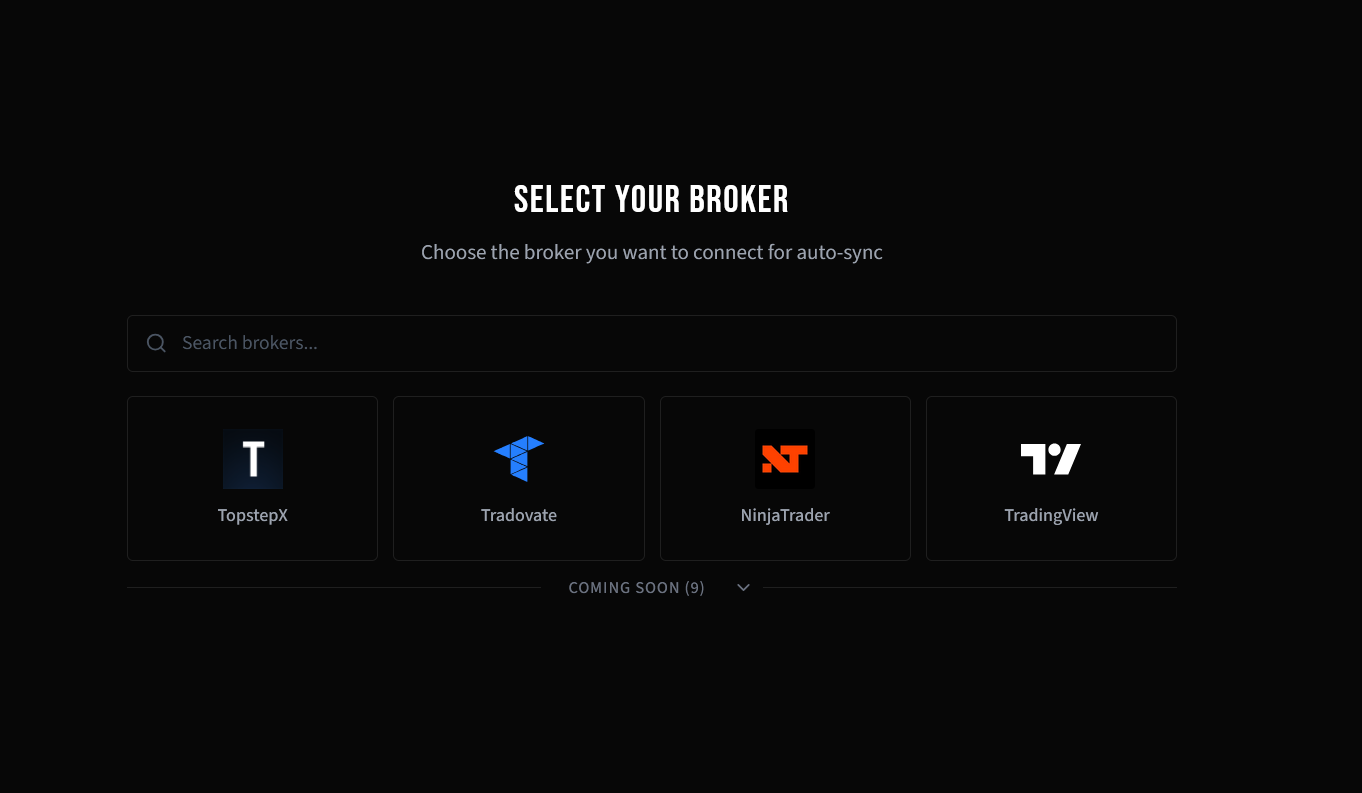
Pick TopStepX from the auto-sync broker picker.
Step 6: Enter Your Credentials
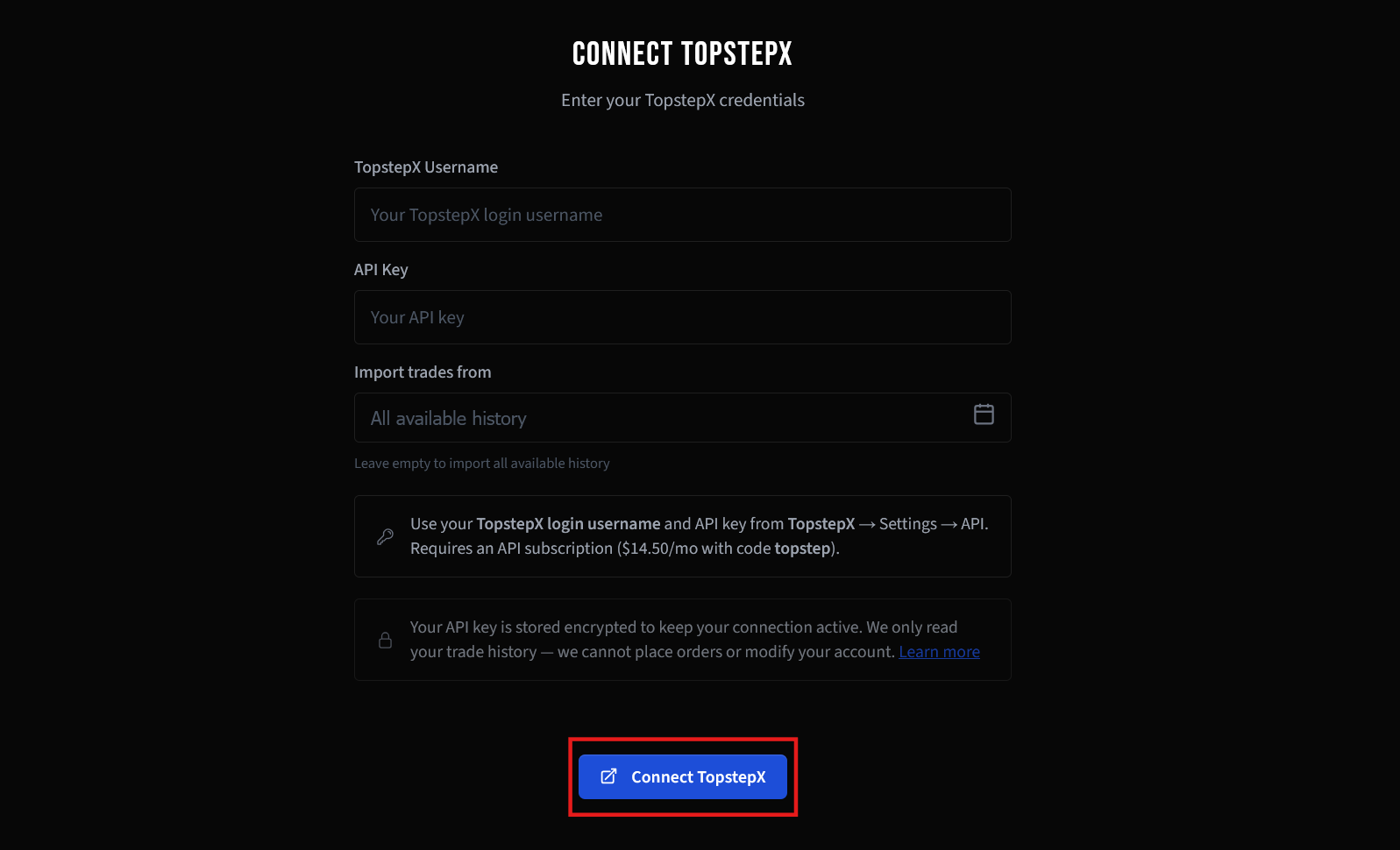
Enter your TopStepX username and the API key you copied in Step 3. Optionally set a start date to limit how far back to import (leave empty for full history). Click Connect TopstepX.
Step 7: Select Your Accounts
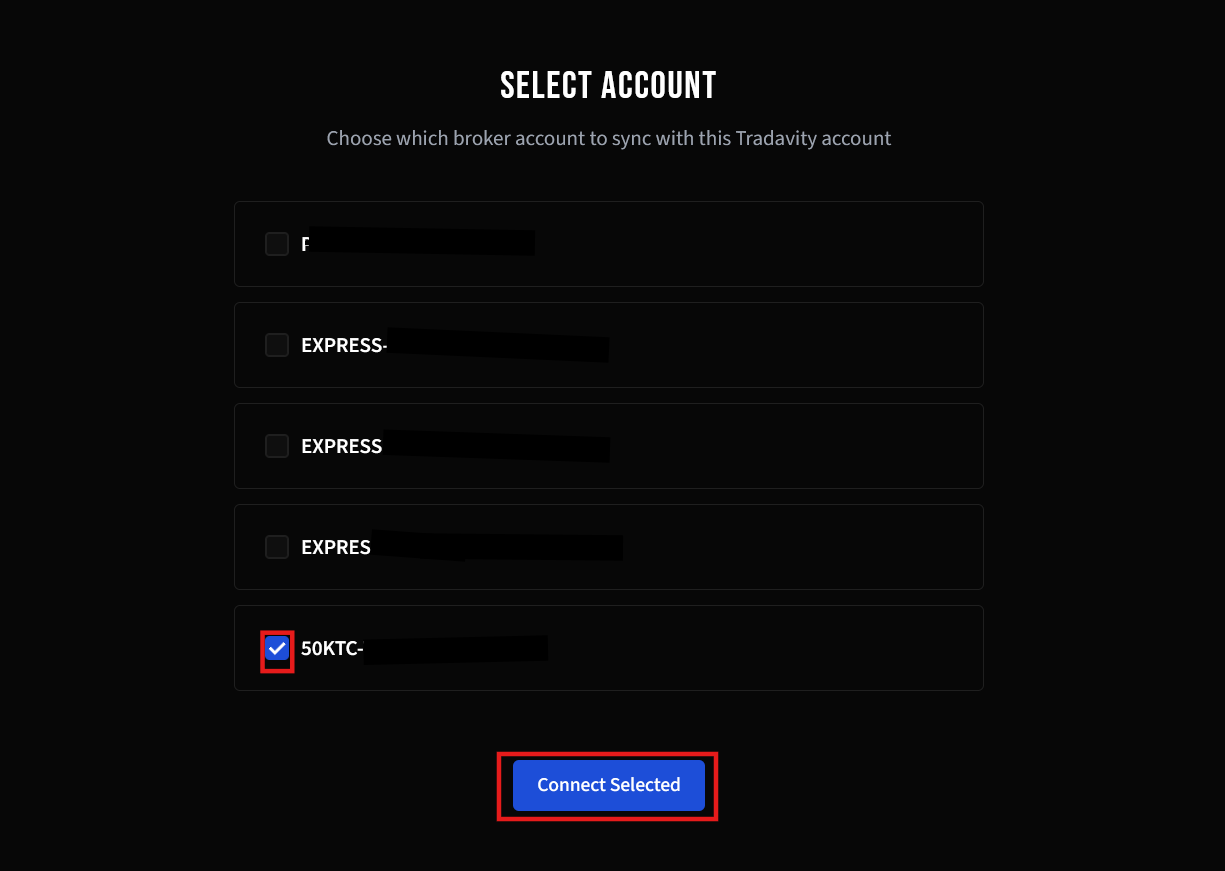
If you have multiple TopStepX accounts, select which ones to sync. Check the accounts you want and click Connect Selected.
Step 8: Connected
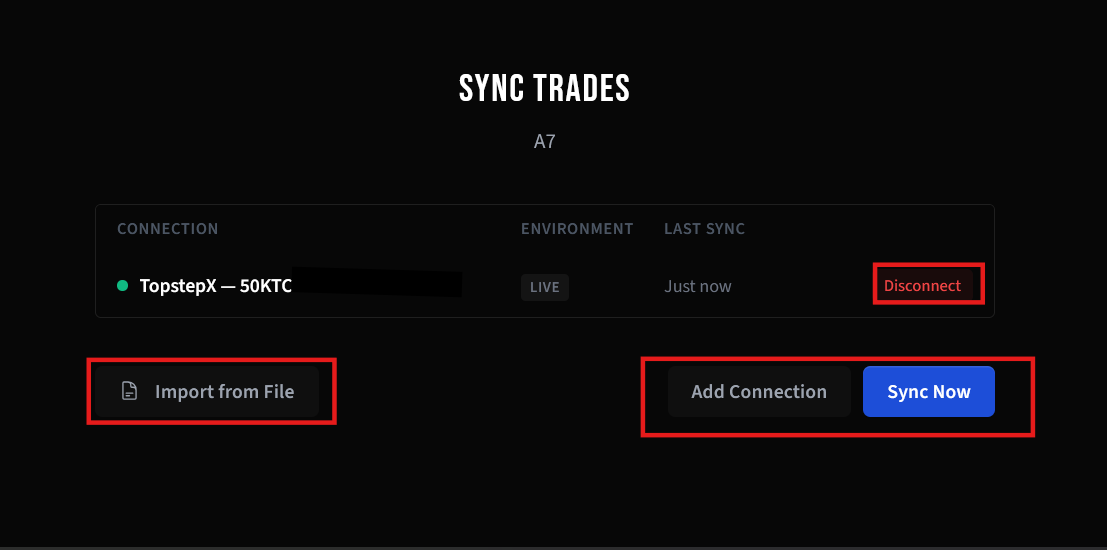
You'll see the sync overview with your active connection. Click Sync Now to trigger an immediate import, or wait for the automatic 15-minute sync. Use Add Connection to link additional accounts, or Disconnect to remove a connection.
What Gets Synced
- All closed trades with entry/exit prices and times
- P&L and fees (per trade)
- SL and TP prices (extracted from your stop/limit orders)
- Full trade history (not just today)
How It Works
- Trades sync every 15 minutes automatically
- Click Sync Now any time for an immediate sync
- Duplicate detection prevents re-importing existing trades
- Your API key is stored encrypted — the connection auto-refreshes without manual intervention
- If copy trading is configured, synced trades are automatically copied to target accounts
You can connect multiple TopStepX accounts to the same Tradavity account. Each syncs independently. You can also select multiple accounts at once during setup.
Each TopStepX account can only be connected to one Tradavity account. To sync the same trades to multiple Tradavity accounts, use Copy Trading instead.
Option 2: CSV Import
If you prefer not to use Auto-Sync, you can manually export and import a CSV file.
Tradavity supports both Trades and Orders exports from TopStepX.
Step 1: Log into TopStepX
Open your browser and log into your TopStepX account.

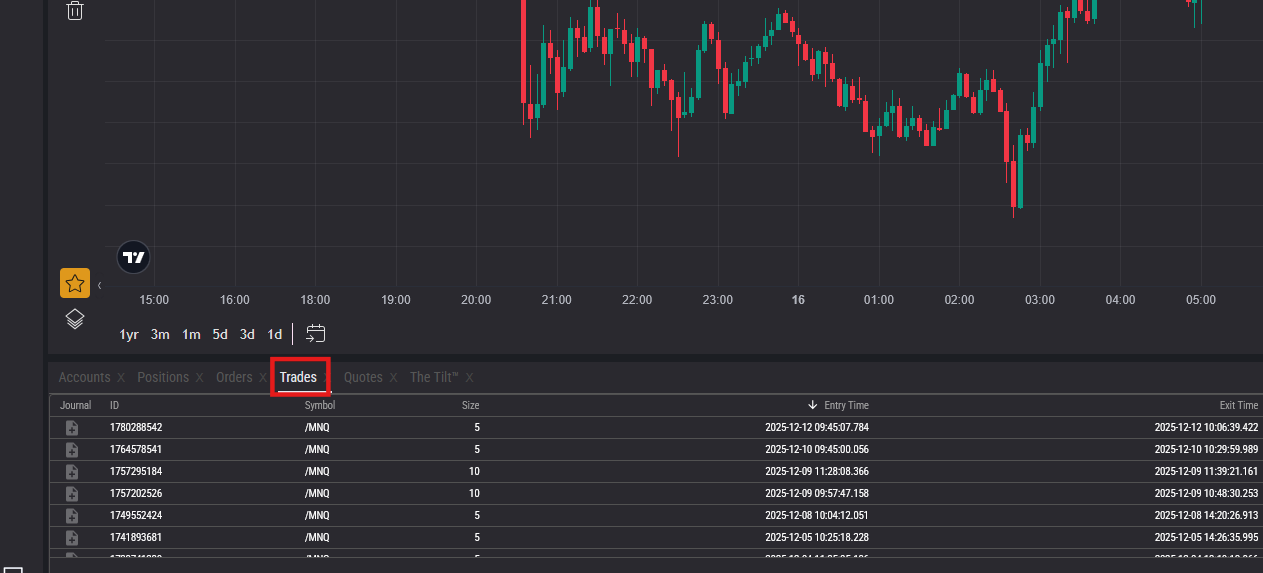
Step 2: Navigate to Trades or Orders Tab
Once logged in, navigate to the Trades tab (recommended) or Orders tab depending on which data you want to export.
- Trades tab - Pre-grouped trades with P&L (recommended for most users)
- Orders tab - Individual executions with more detail
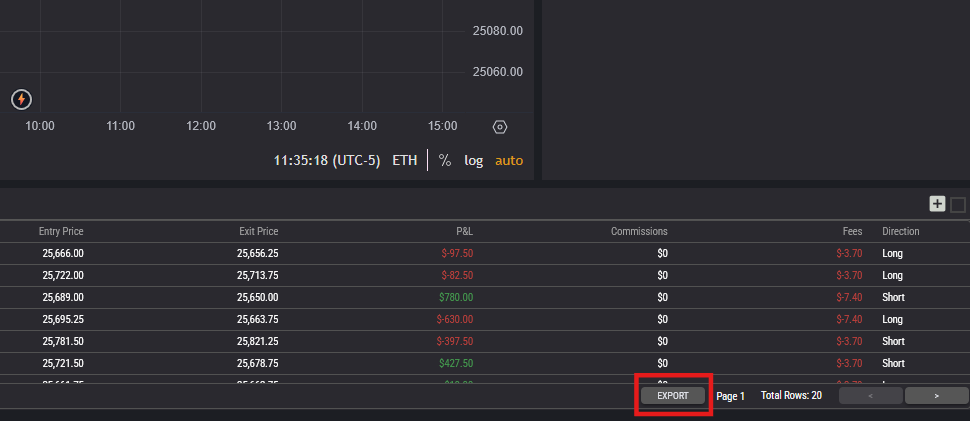
Step 3: Click Export
Click the Export button at the bottom right corner of the page.
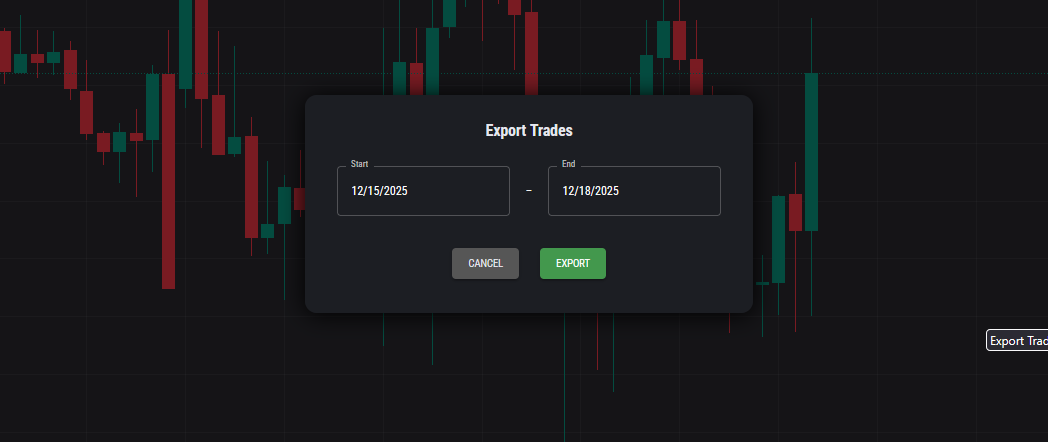
Step 4: Select Date Range and Export
Select the date range for the trades you want to export, then click Export. Save the CSV file to your computer.
Importing into Tradavity
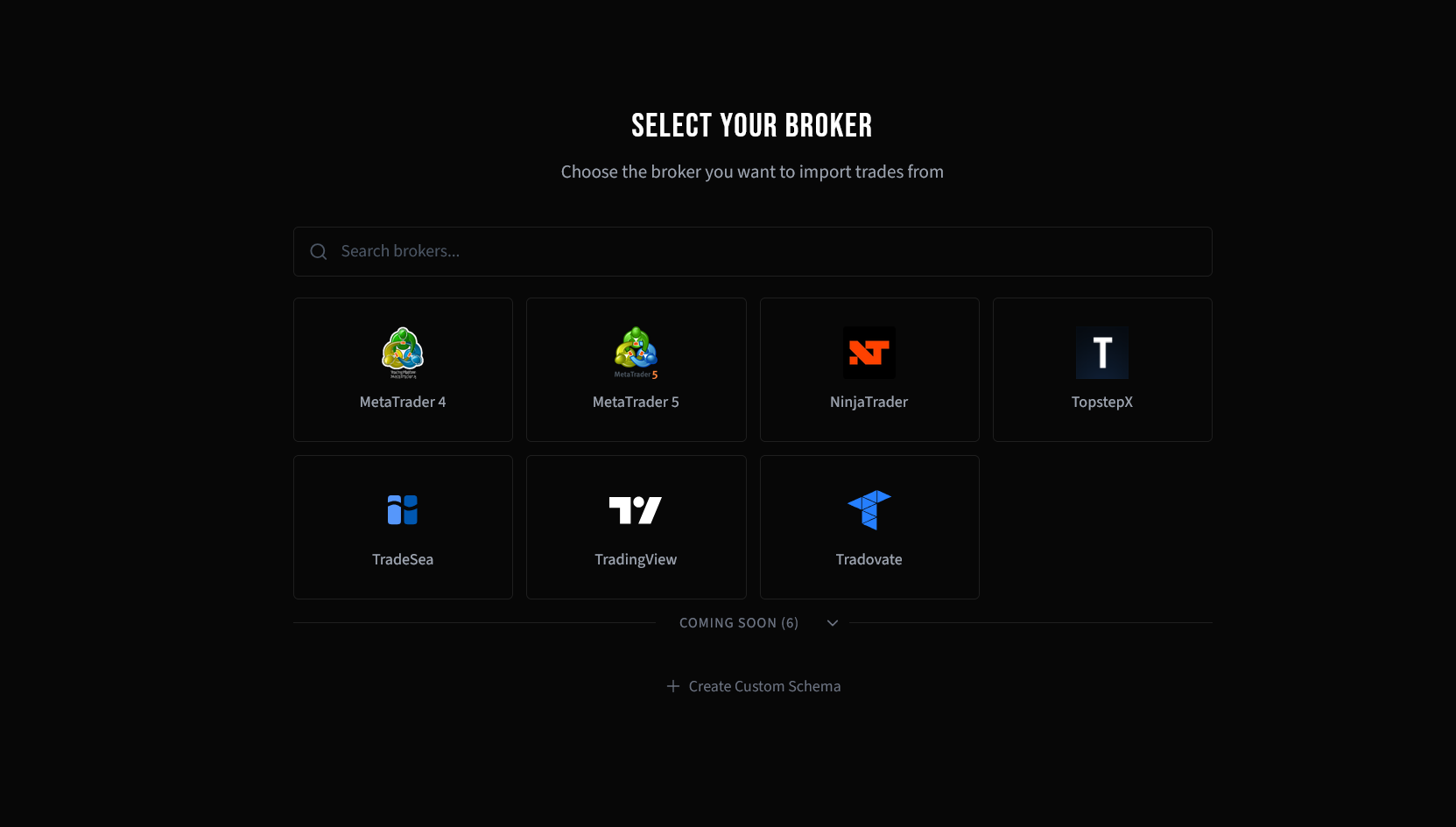
Step 5: Select Your Broker
In Tradavity, go to Settings → Accounts, click Sync on your account, then choose File Import. Select TopStepX from the broker list.
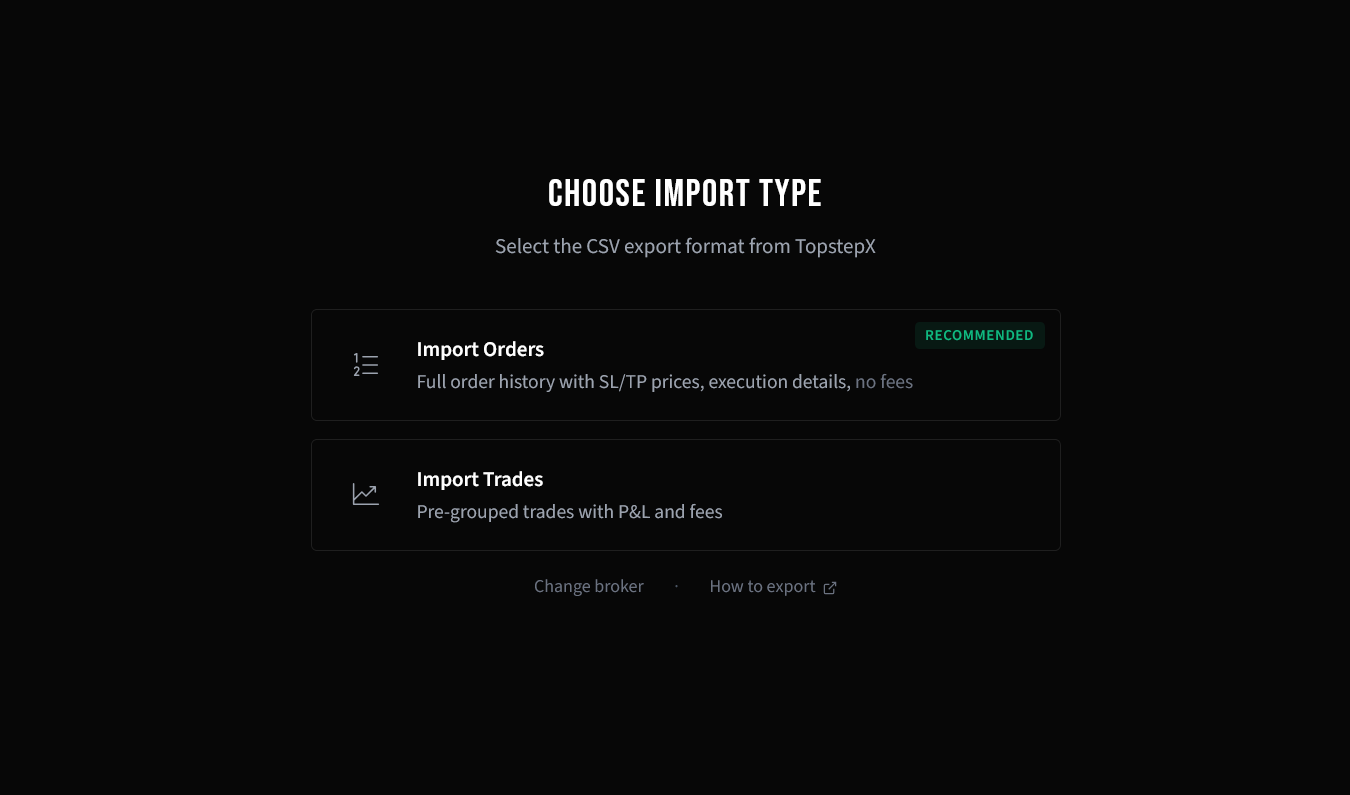
Step 6: Choose Import Type
Select the CSV export format that matches your file. TopStepX supports Orders (recommended — includes SL/TP prices) and Trades (pre-grouped with P&L and fees).
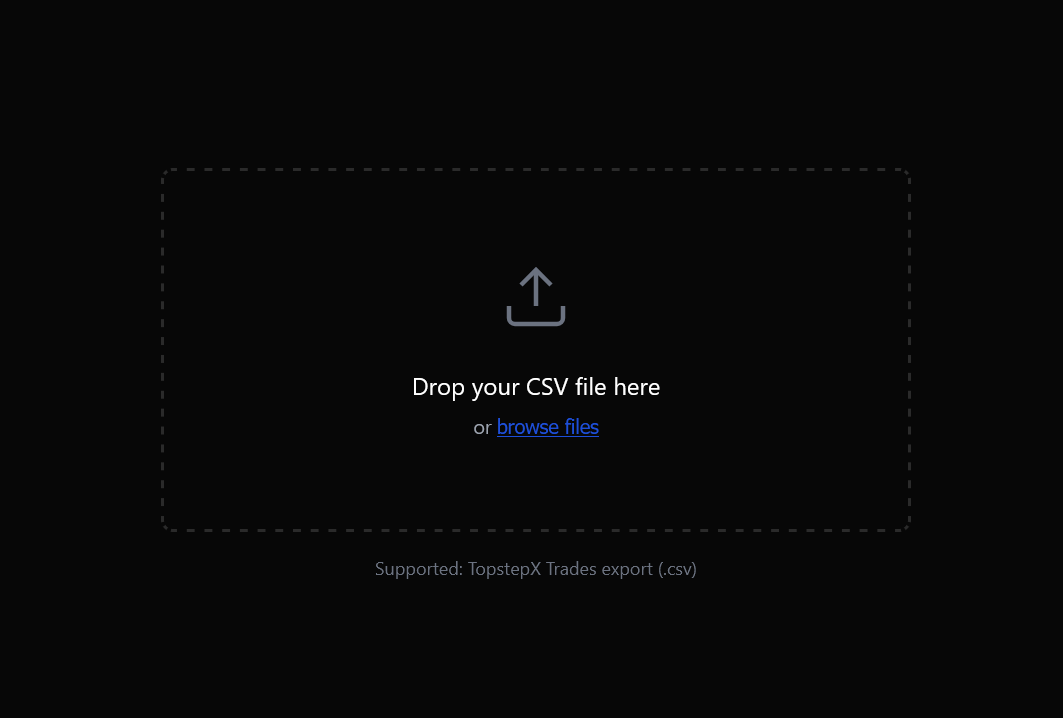
Step 7: Upload Your File
Drag and drop your CSV file, or click to browse and select it.
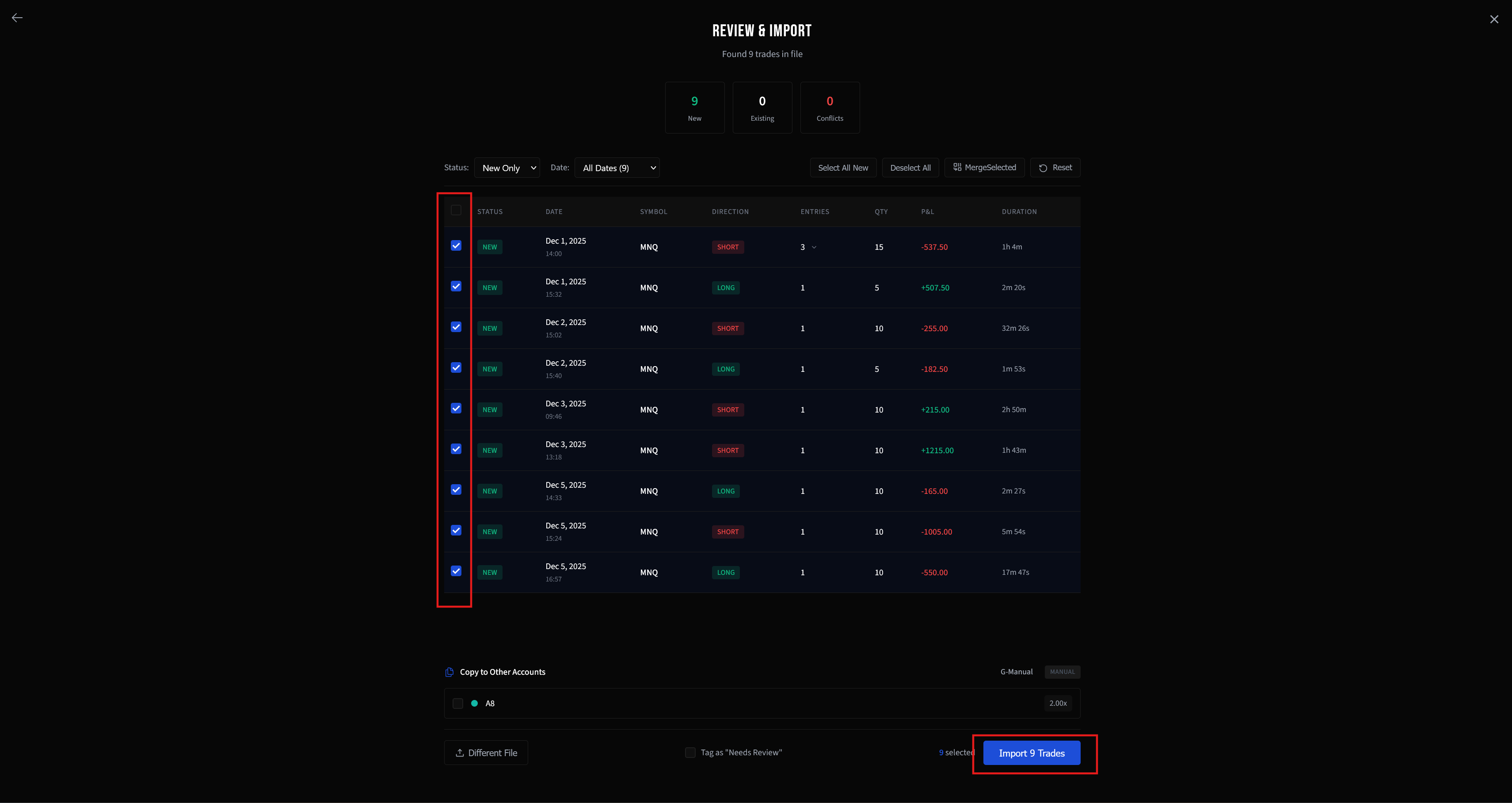
Step 8: Review and Import
Review the parsed trades in the preview. New trades are automatically selected. Check the details, then click Import to add them to your account.
Troubleshooting
Import fails or no trades found
- Make sure you selected the correct export type (Trades vs Orders) matching your file
- Verify the file is CSV format, not XLSX
- Check you have closed trades in the selected date range
Missing commissions
TopStepX exports may not include commission data. You can add fees manually after import by editing each trade.
See CSV Import Troubleshooting for more solutions.
Data & Security Disclosure
TopstepX Auto-Sync requires a separate ProjectX API subscription. This is not included with Tradavity. You must subscribe to the ProjectX API independently to enable this integration.
What We Store
- Your TopstepX username and ProjectX API key, stored encrypted (AES-256-CBC) to maintain a persistent connection. TopstepX authentication tokens expire every 24 hours and require the original API key to refresh.
- A temporary authentication token (JWT) used for API communication.
What We Access
- Your trade history (closed trades, P&L, fees, entry/exit prices and times)
- Your account information (account ID, account name, status)
- Your order history (for stop-loss and take-profit extraction)
- Contract/symbol information (for symbol resolution)
What We Cannot Do
- We cannot place orders or execute trades on your account
- We cannot transfer funds or modify your account settings
- We cannot access your TopstepX password (only the API key you provide)
Disconnecting
You can disconnect your TopstepX account at any time from Settings → Accounts. Disconnecting immediately and permanently deletes all stored credentials (API key, username, and tokens).
Tradavity is not affiliated with, endorsed by, or sponsored by TopstepX or ProjectX. Tradavity is not responsible for any actions taken on your TopstepX or ProjectX accounts, including but not limited to unauthorized trades, account restrictions, data discrepancies, or account termination. Use of this integration is at your own risk and subject to TopstepX's and ProjectX's respective Terms of Service. See our Risk Disclosure for full details.