
TradingView Import Guide

There are two ways to get your TradingView trades into Tradavity:
- Browser Extension (recommended) — Sync trades in one click directly from TradingView. No file exports needed.
- CSV Import — Manually export and upload a file from TradingView.
Option 1: Browser Extension (Recommended)
The Tradavity browser extension reads your trade history directly from TradingView and imports it into your journal with one click. Works with Paper Trading and any connected broker.
This extension works by reading visible trade data from your TradingView browser tab (web scraping). It is not affiliated with or endorsed by TradingView. If you do not consent to this, use the CSV Import method below instead.
Option 2: CSV Import
If you prefer not to use the extension, you can manually export and upload a CSV file from TradingView.
Tradavity supports Order History (recommended) and Balance History exports from TradingView. Column names vary by broker but are detected automatically.
Step 1: Open TradingView Chart
Open any chart in TradingView and make sure you're logged in.

Step 2: Open Paper Trading Panel
Click Paper Trading at the bottom of the chart to open the trading panel.
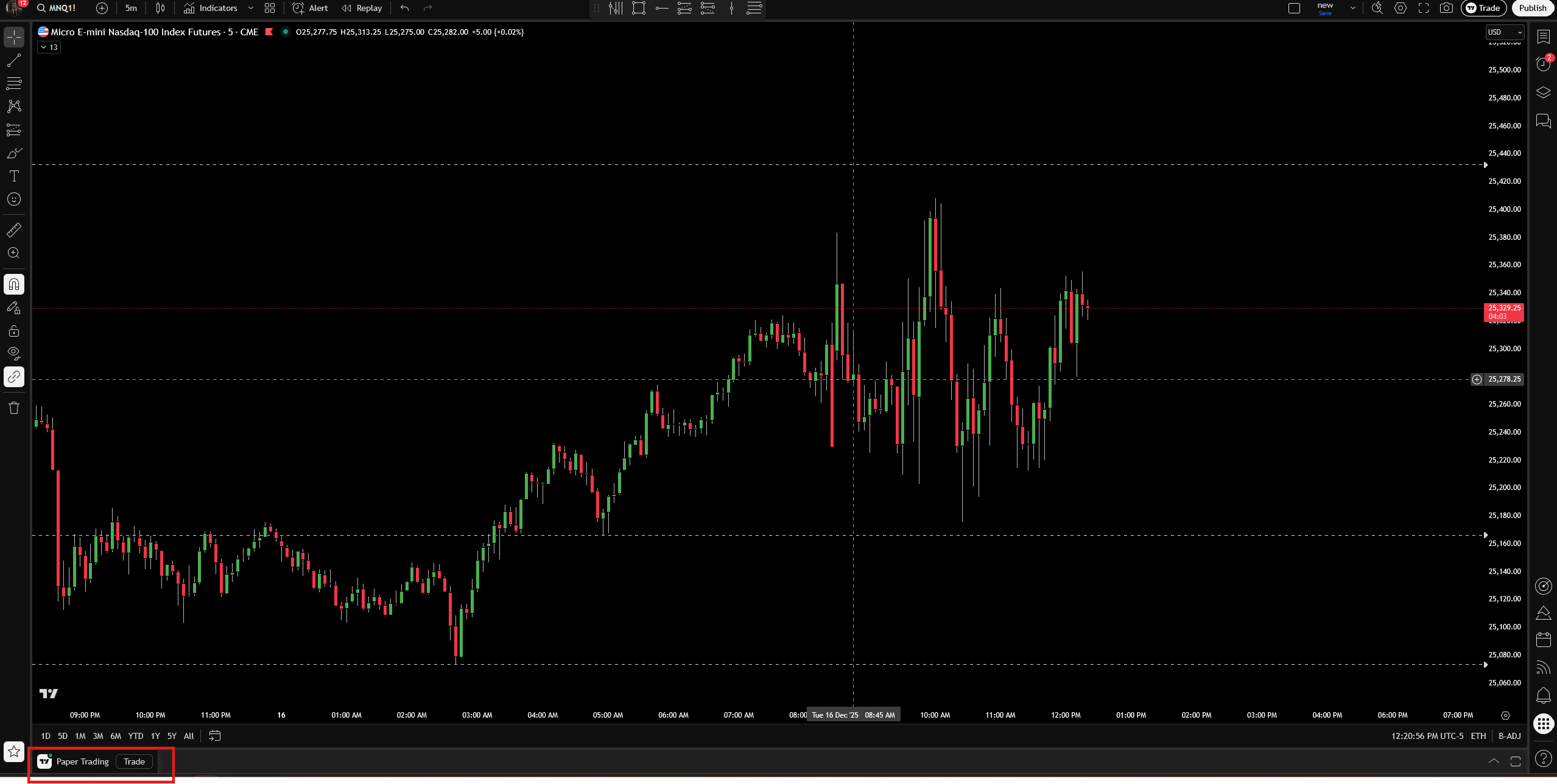
Step 3: Enable All Columns
Click the three-dot menu on the right side and enable all columns by checking all boxes. This ensures your export has all required data.
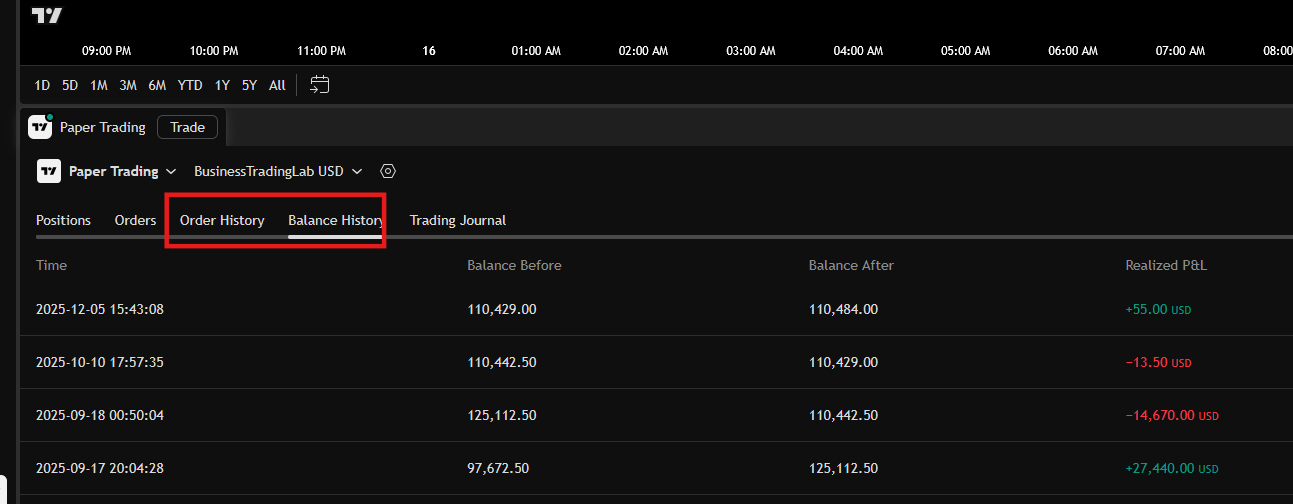
Step 4: Export Data
Click on the Paper Trading logo text, then click Export data.
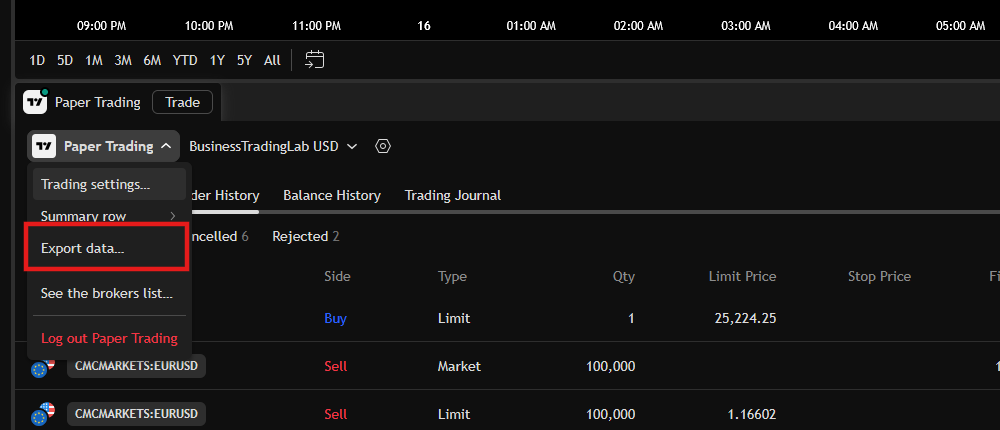
Step 5: Choose Export Type and Export
In the popup, choose Order History or Balance History, then click Export. The CSV file will download to your computer.
- Balance History - Pre-matched trades with P&L (recommended)
- Order History - Individual orders with fill data
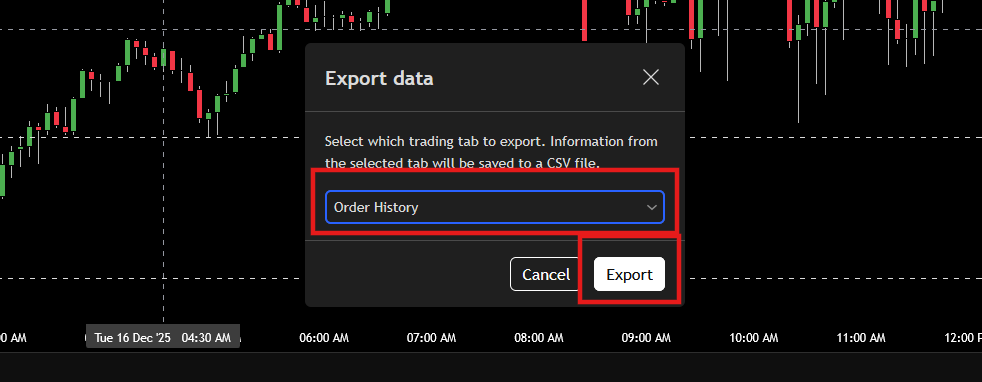
Importing into Tradavity
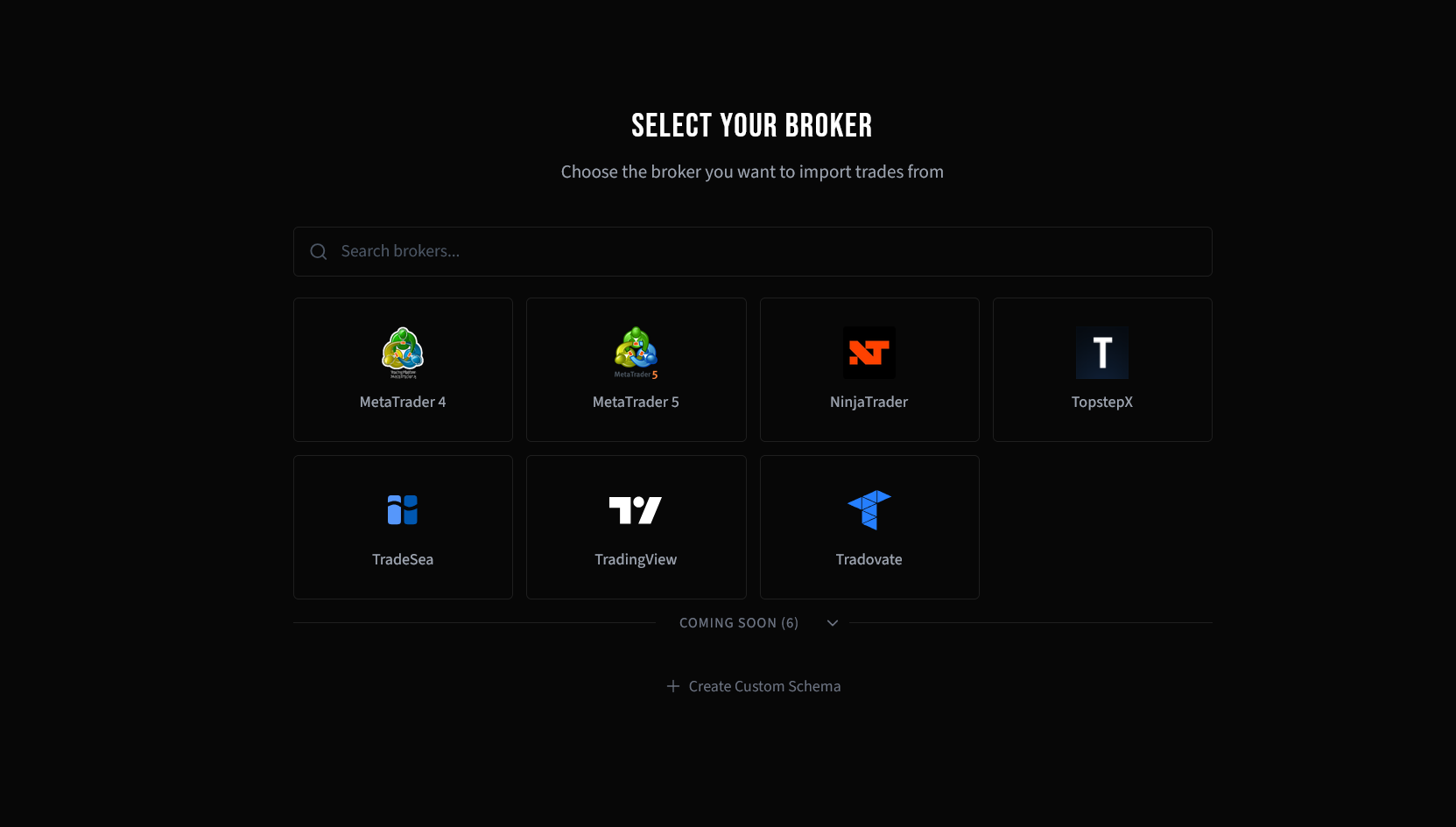
Step 6: Select Your Broker
In Tradavity, go to Settings → Accounts, click Sync on your account, then choose File Import. Select TradingView from the broker list.
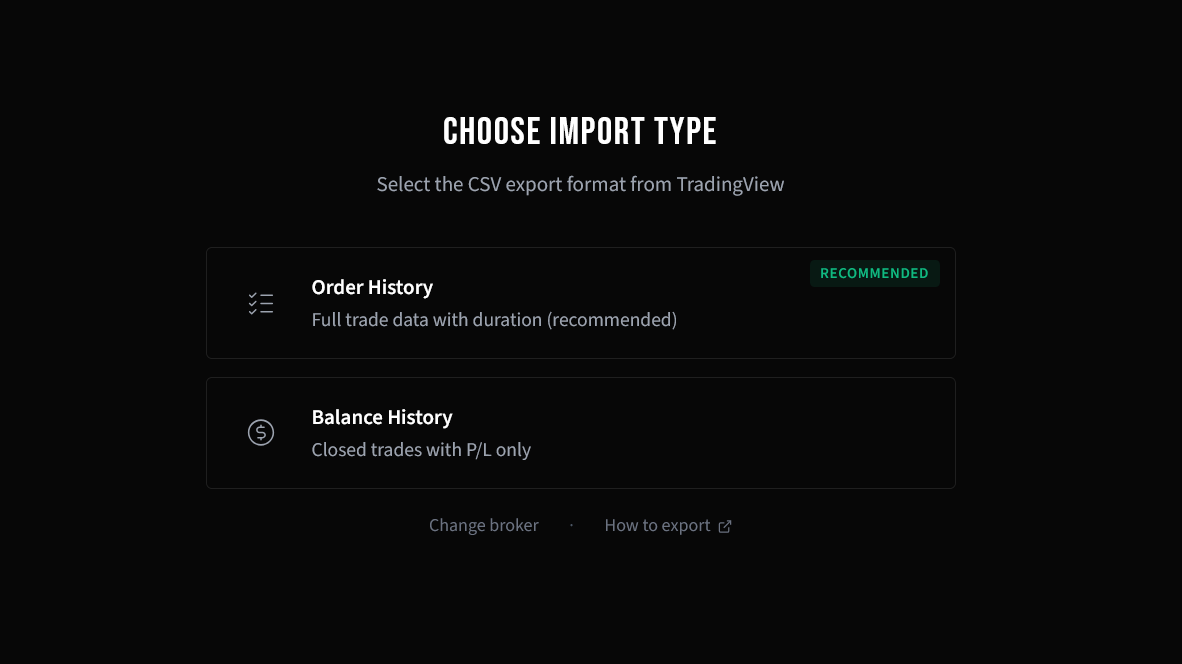
Step 7: Choose Import Type
Select the CSV export format that matches your file. TradingView supports Order History (recommended — full trade data with duration) and Balance History.
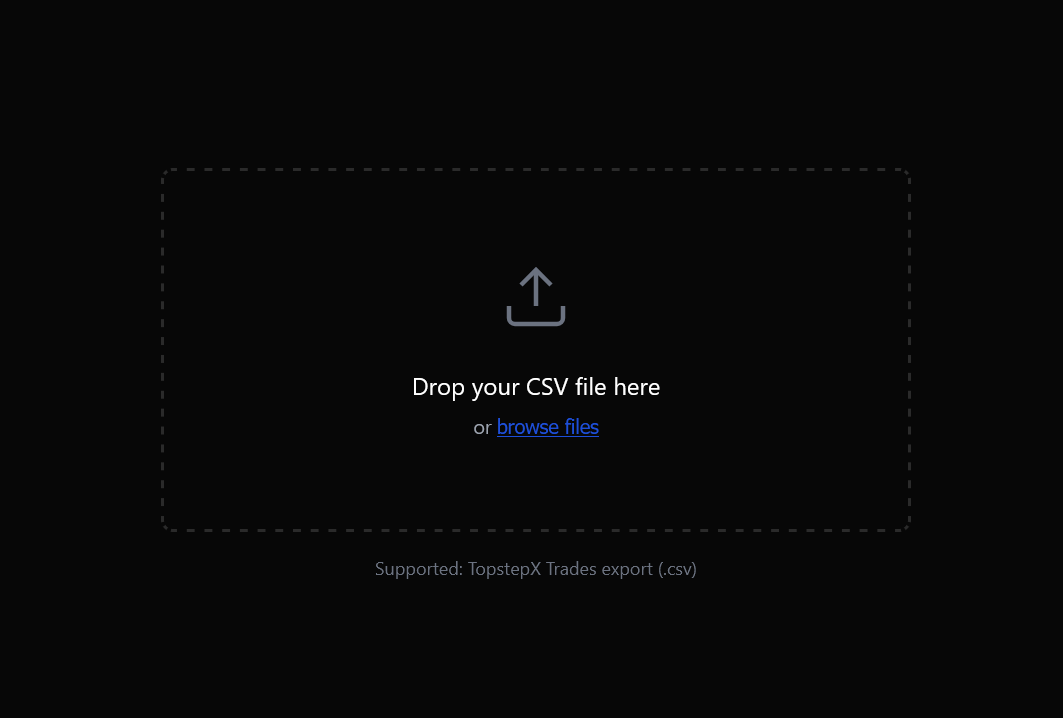
Step 8: Upload Your File
Drag and drop your CSV file, or click to browse and select it.
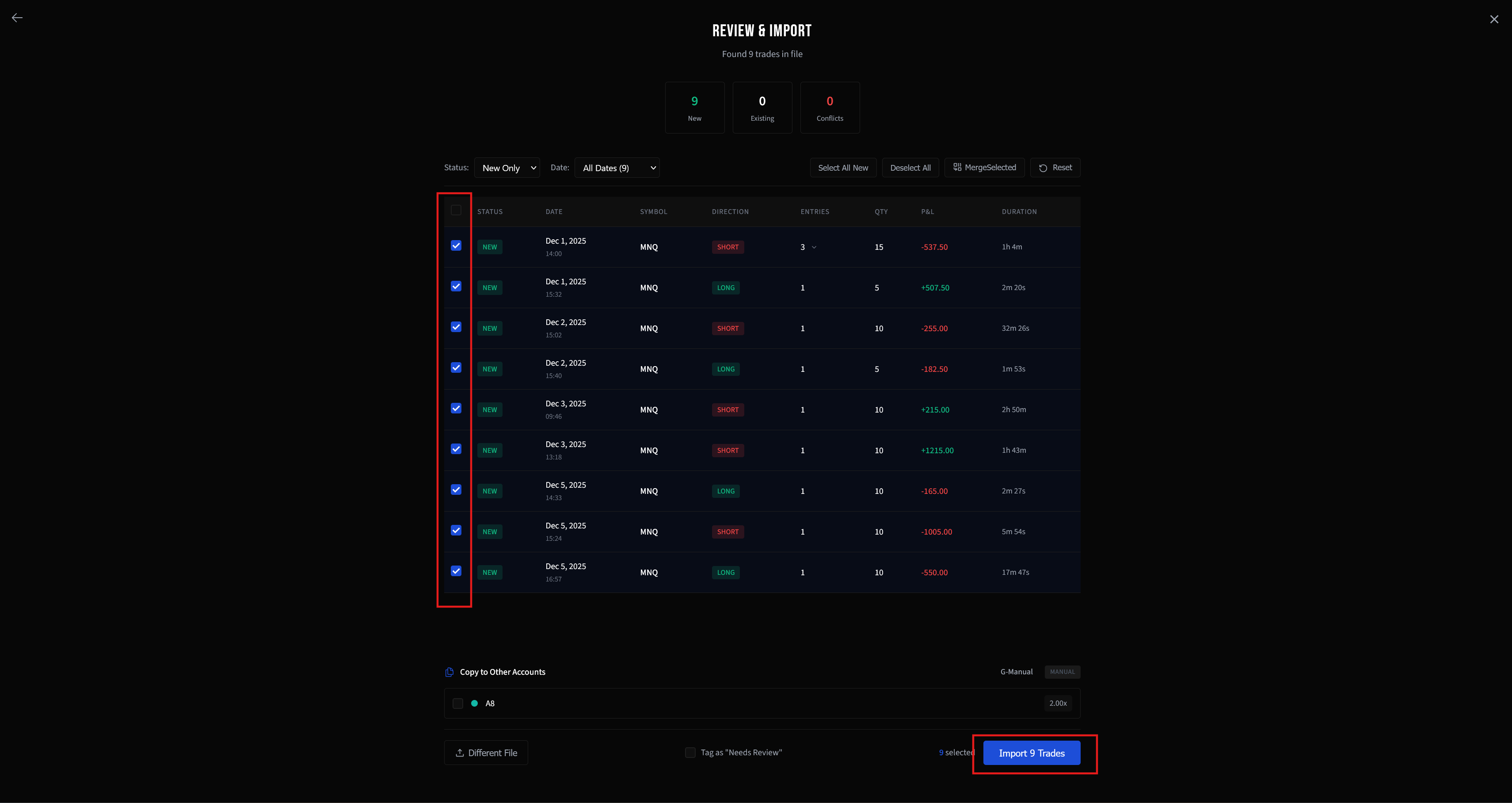
Step 9: Review and Import
Review the parsed trades in the preview. New trades are automatically selected. Check the details, then click Import to add them to your account.
Troubleshooting
Import fails
- Make sure you enabled all columns before exporting
- Verify you selected the correct export type (Balance History vs Order History)
Real broker trades
Works with Paper Trading and any real broker connected through TradingView. Column names may differ between brokers but are detected automatically.
See CSV Import Troubleshooting for more solutions.
Tradavity is not affiliated with, endorsed by, or sponsored by TradingView. The browser extension reads your trade history from TradingView's interface for import into your Tradavity journal. It does not access any other data, place orders, or modify your TradingView account. See our Risk Disclosure for full details.