

MetaTrader 5 Import Guide
This guide shows you how to export your trades from MetaTrader 5 (MT5) and import them into Tradavity.
MT5 exports as HTML, not CSV. This is normal - Tradavity supports MT5 HTML reports.
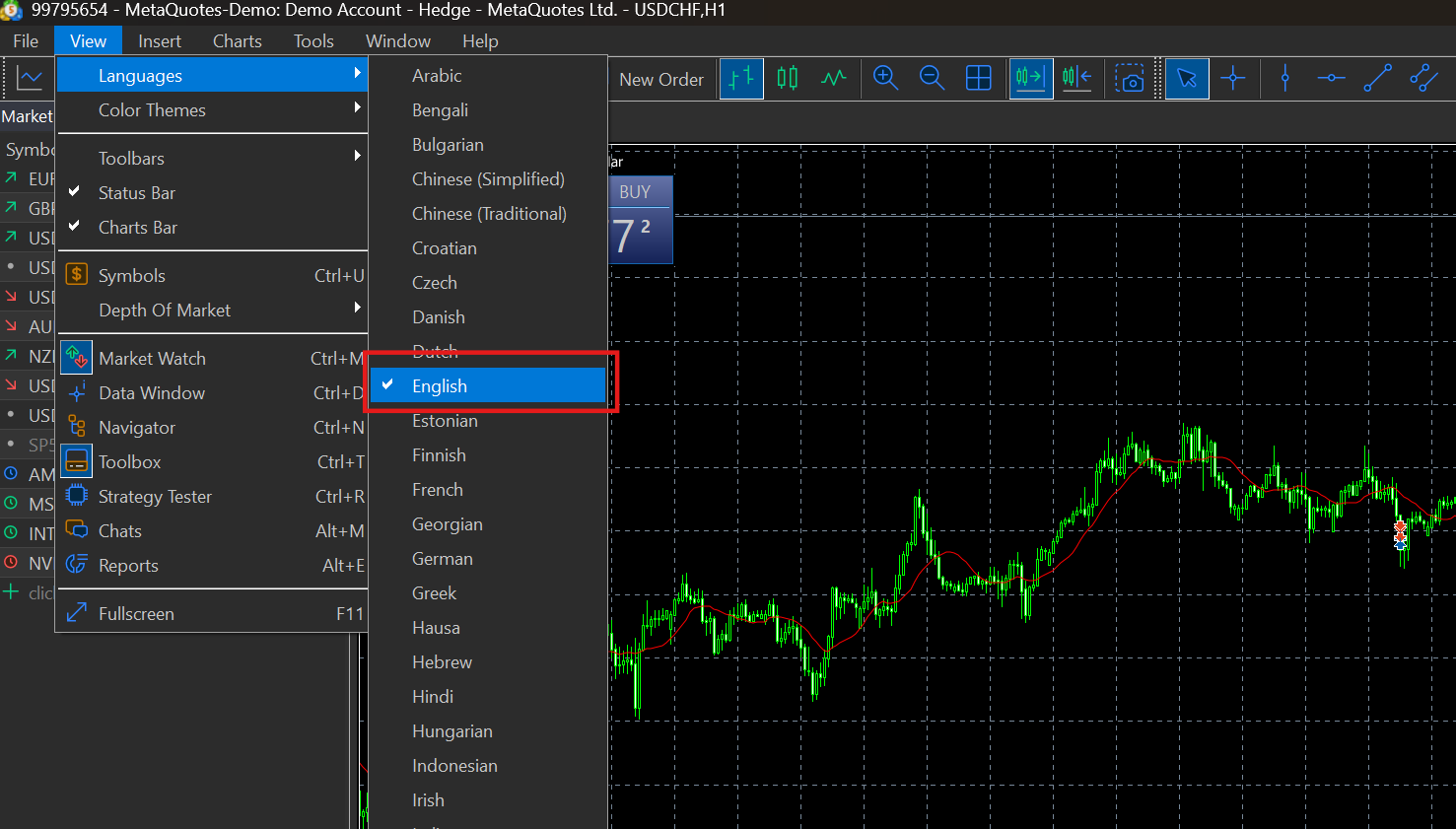
Important: Set Language to English
Before exporting, make sure MT5 is set to English. Tradavity only supports English HTML reports.
- Click View in the top menu bar
- Select Languages
- Choose English
- Restart MT5
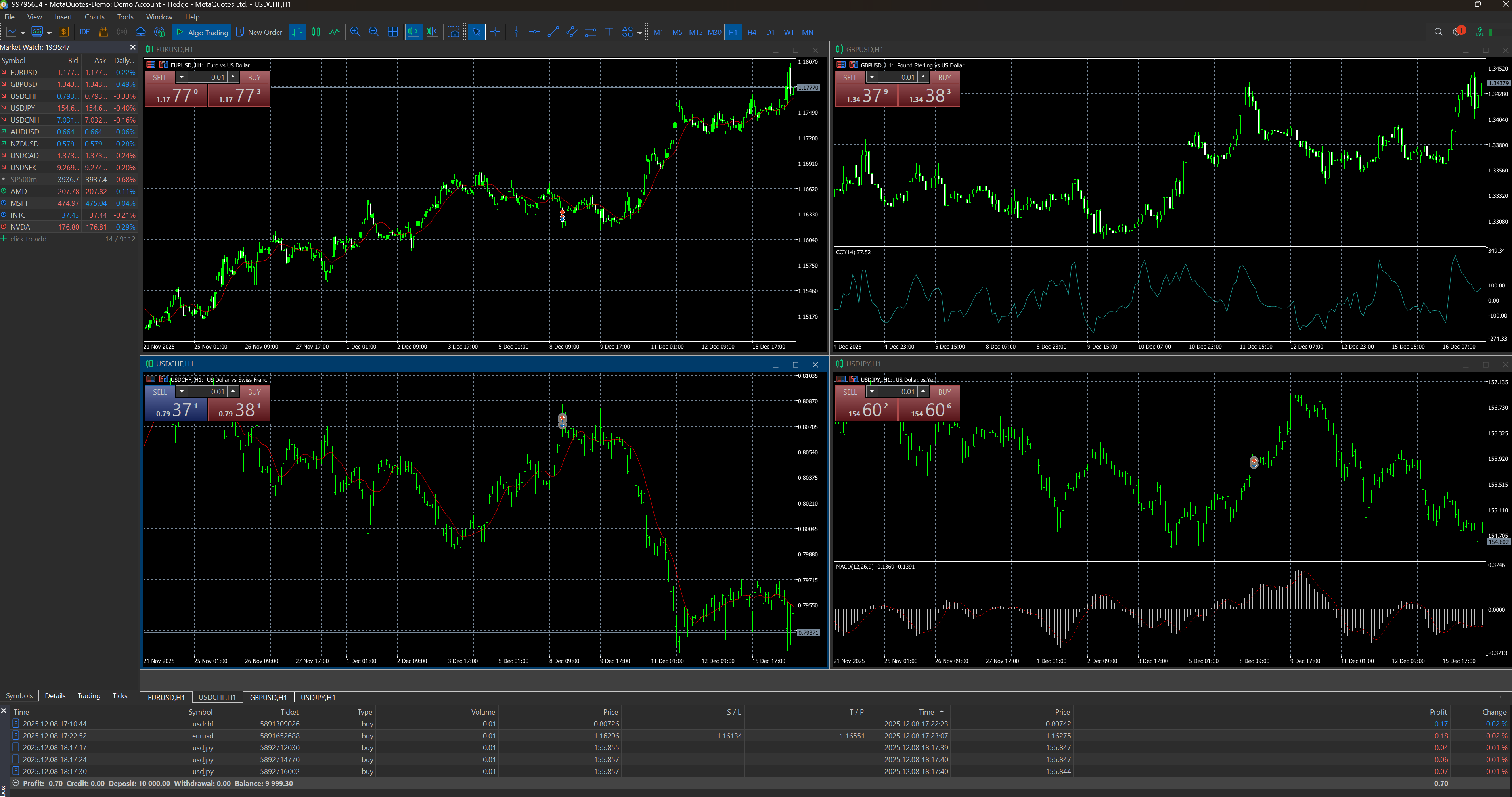
Step 1: Open MT5
Open your MetaTrader 5 desktop application. Make sure it's the version from your specific broker.
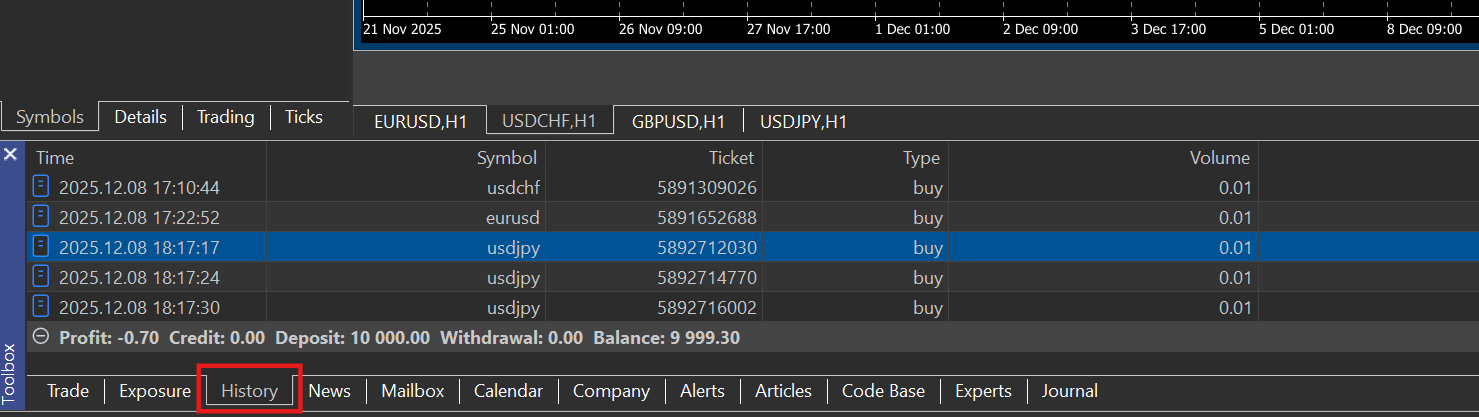
Step 2: Open Toolbox Window
If the Toolbox window isn't visible, press Ctrl+T or go to View > Toolbox.

Step 3: Go to History Tab
In the Toolbox window, click the History tab.
Step 4: Select Period and Save Report
Right-click in the History area, select your time period (All History recommended), then right-click again and select Report > HTML. Save the HTML file to your computer.

Importing into Tradavity
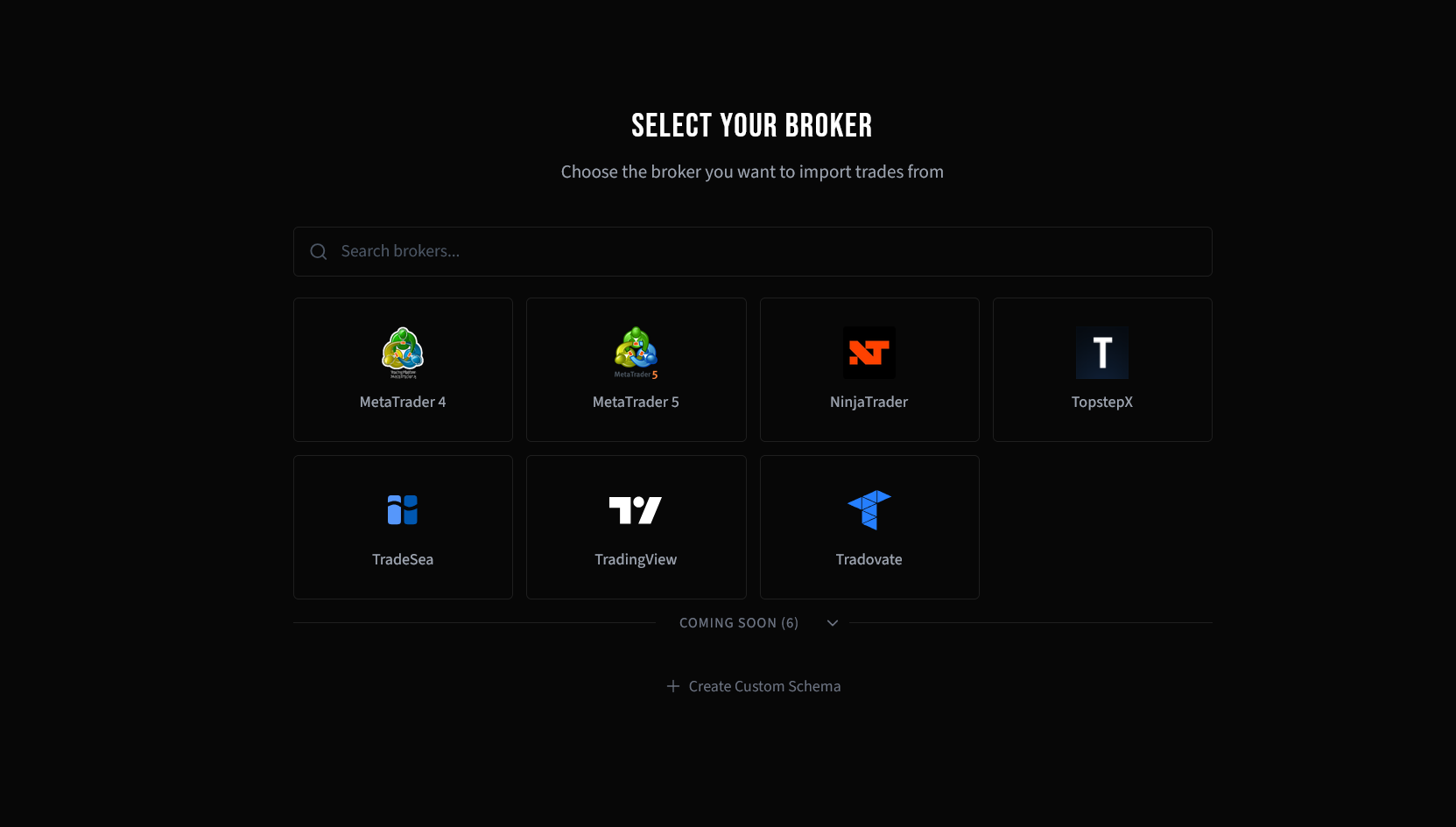
Step 5: Select Your Broker
In Tradavity, go to Settings → Accounts, click Sync on your account, then choose File Import. Select MetaTrader 5 from the broker list.
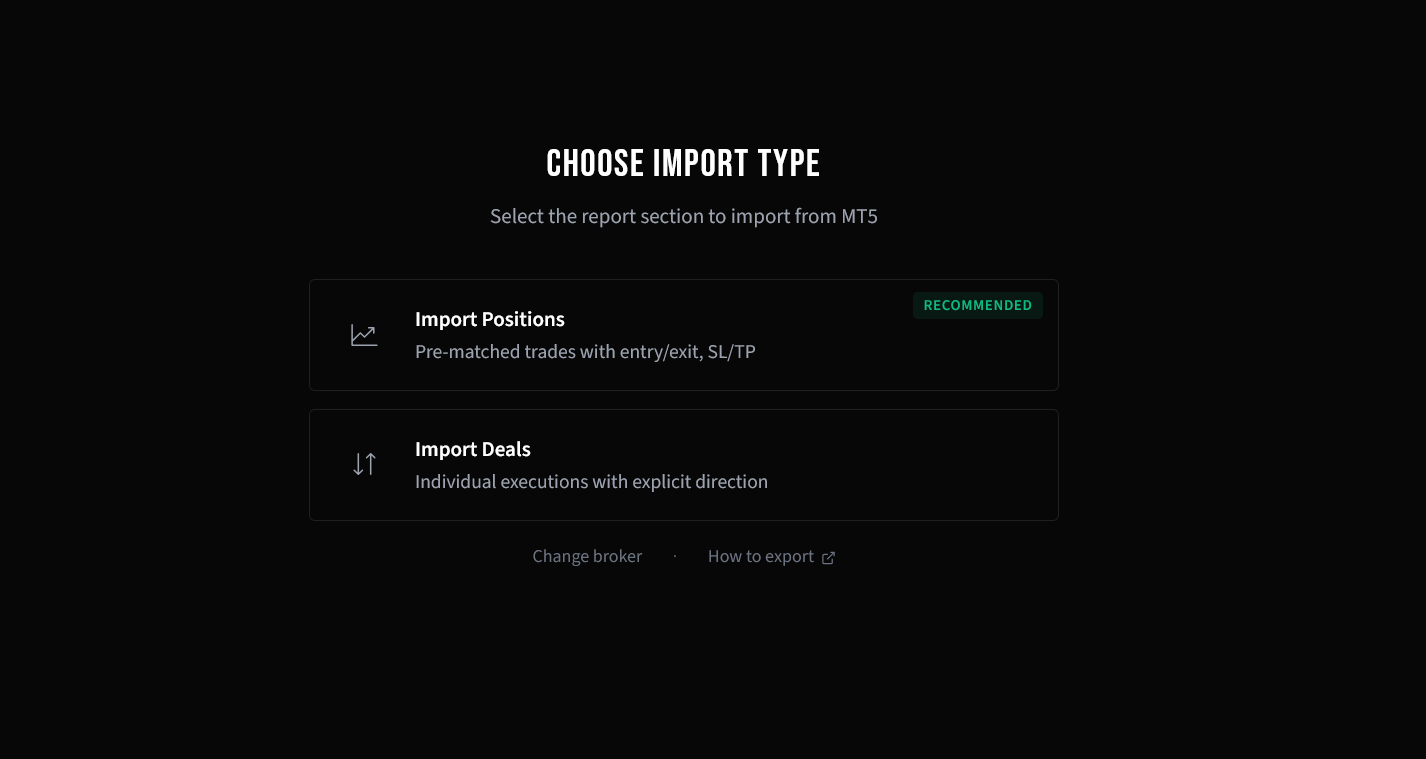
Step 6: Choose Import Type
MetaTrader 5 uses a single HTML report format. This is automatically detected.
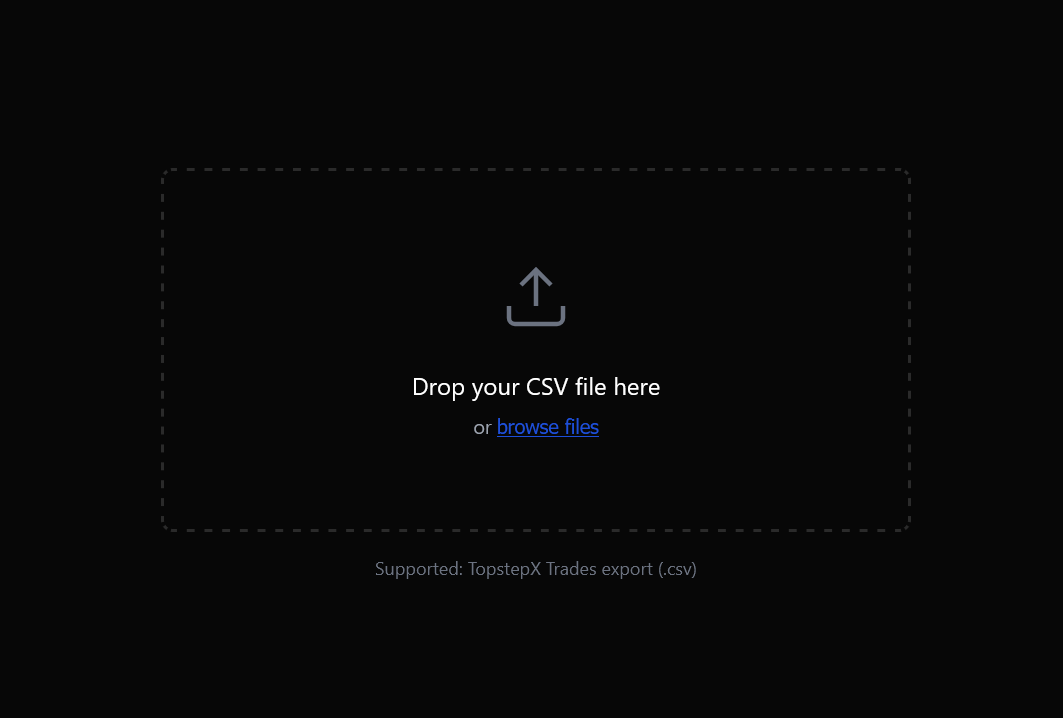
Step 7: Upload Your HTML File
Drag and drop your HTML report file, or click to browse and select it.
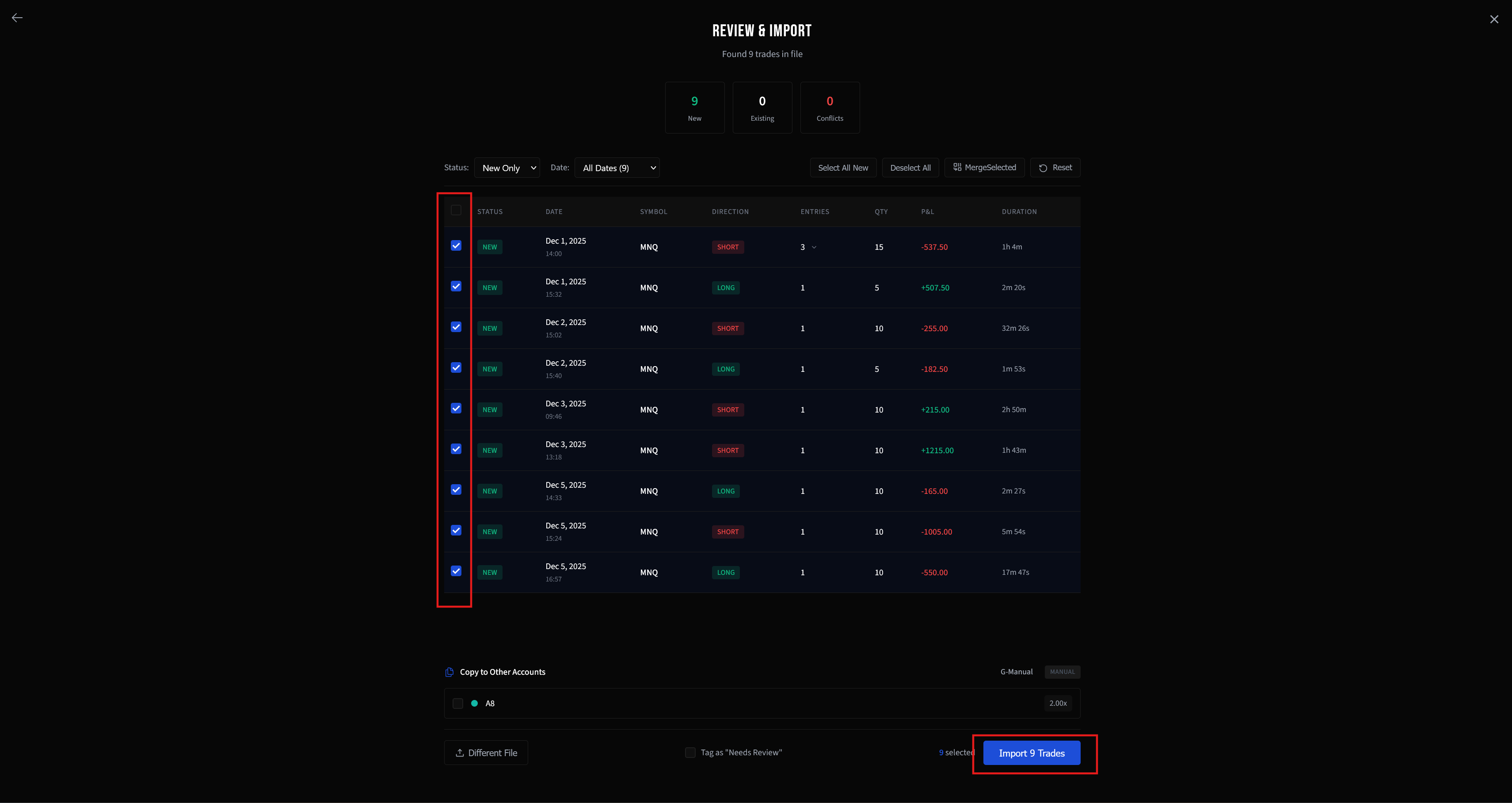
Step 8: Review and Import
Review the parsed trades in the preview. New trades are automatically selected. Check the details, then click Import to add them to your account.
Troubleshooting
Import fails
- Language must be English - Go to View > Languages > English, restart MT5, then export again
- Make sure you exported as HTML (Report > HTML)
Empty report
Make sure you selected "All History" to include all closed trades. Open positions won't appear.
Wrong broker version
Download MT5 from your specific broker's website, not a generic source.
See CSV Import Troubleshooting for more solutions.