

MetaTrader 4 Import Guide
This guide shows you how to export your trades from MetaTrader 4 (MT4) and import them into Tradavity.
MT4 exports as HTML, not CSV. This is normal - Tradavity supports MT4 HTML reports.
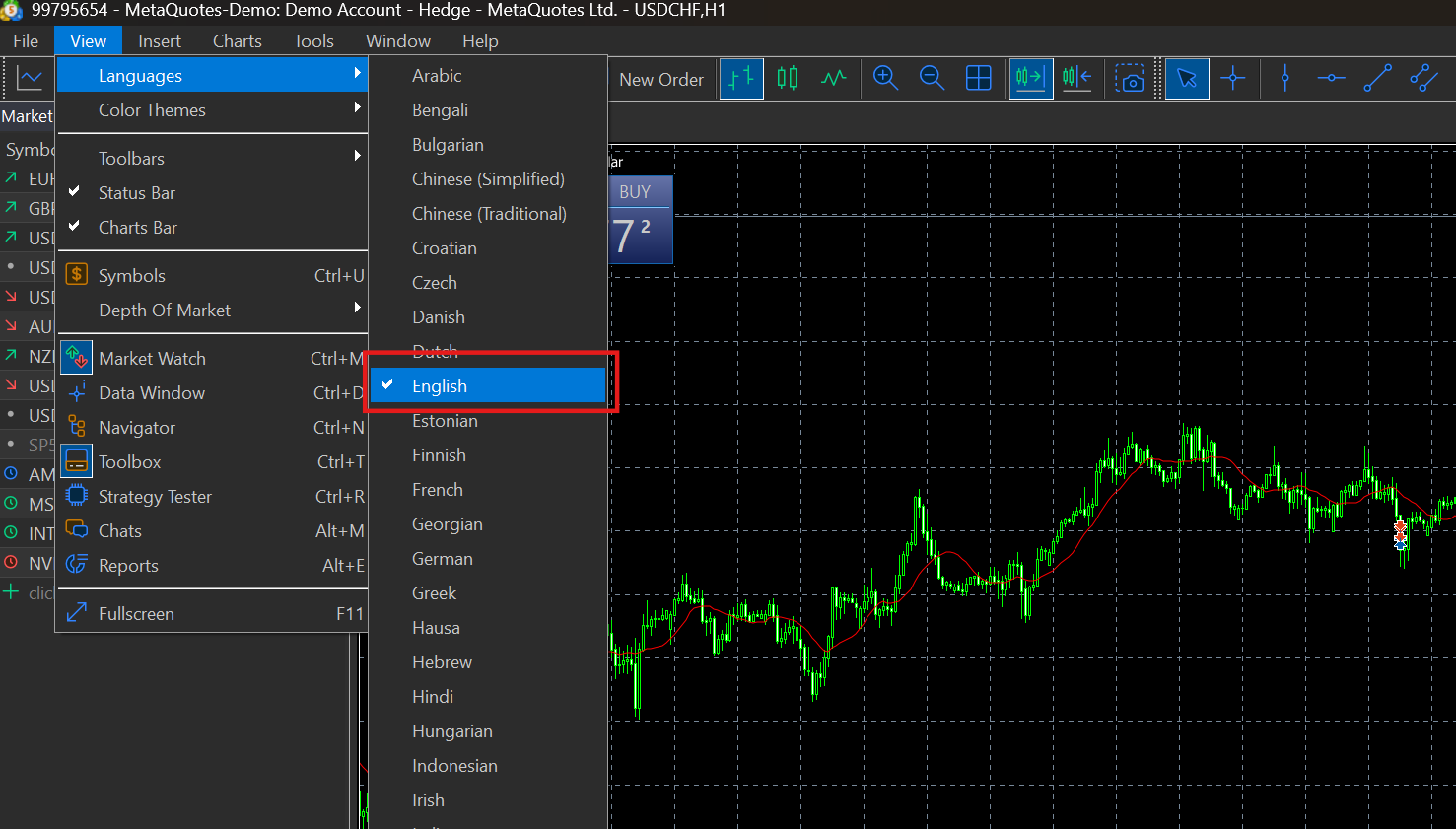
Important: Set Language to English
Before exporting, make sure MT4 is set to English. Tradavity only supports English HTML reports.
- Click View in the top menu bar
- Select Languages
- Choose English
- Restart MT4
Step 1: Open MT4
Open your MetaTrader 4 desktop application. Make sure it's the version from your specific broker.
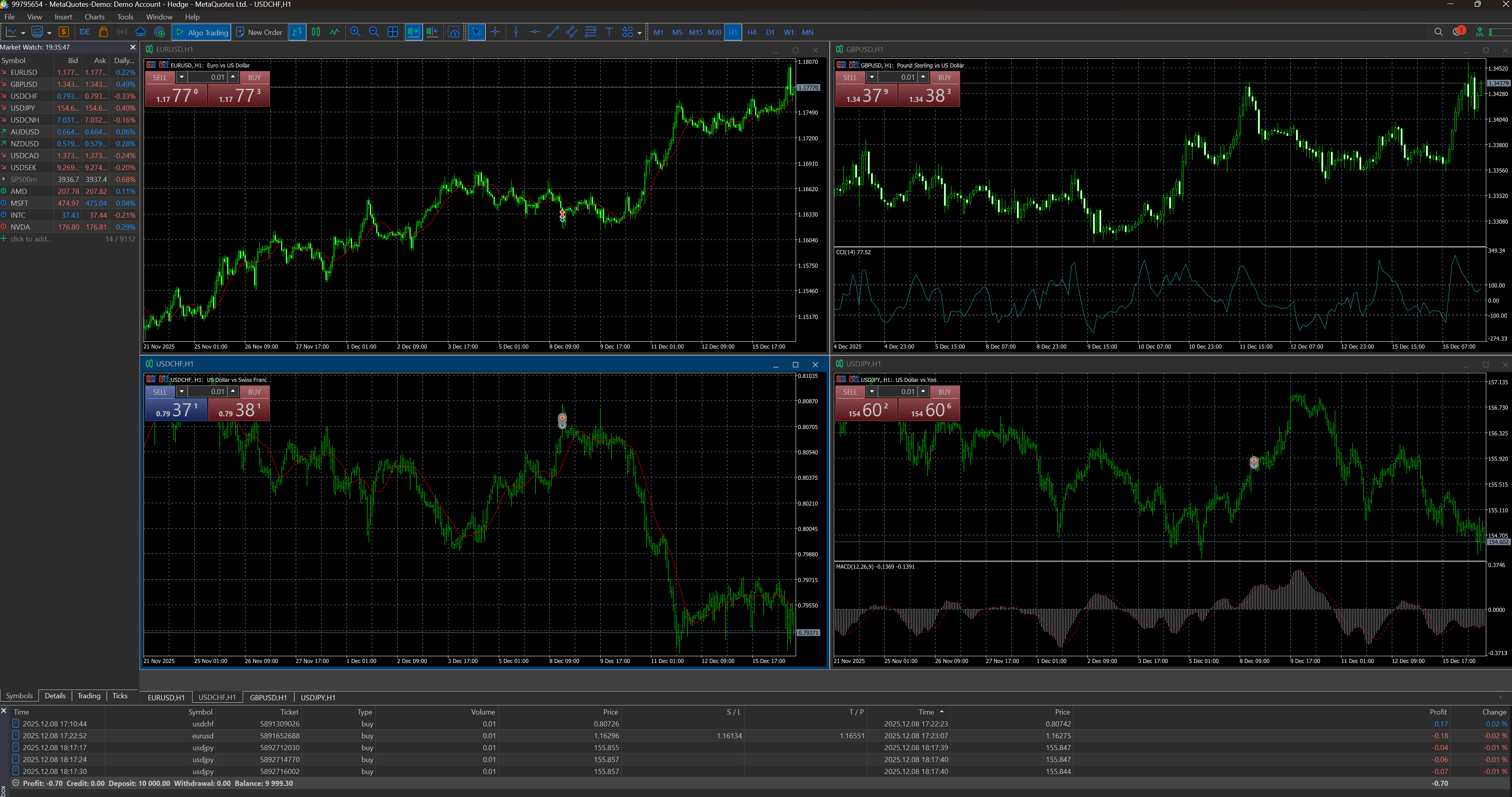
Step 2: Open Terminal Window
If the Terminal window isn't visible, press Ctrl+T or go to View > Terminal.

Step 3: Go to Account History
In the Terminal window, click the Account History tab.
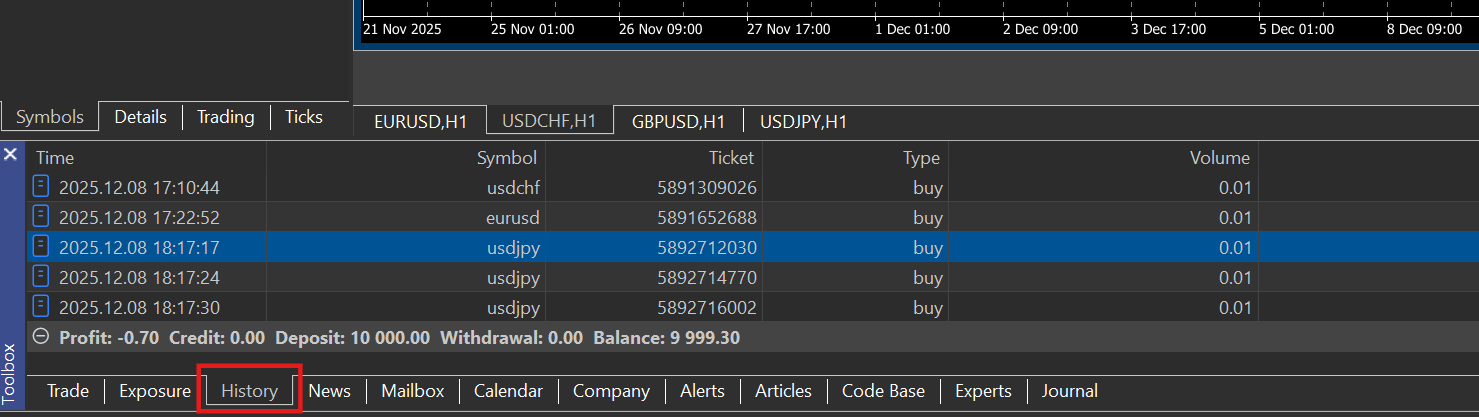
Step 4: Select Period and Save Report
Right-click in the Account History area, select your time period (All History recommended), then right-click again and select Save as Report. Save the HTML file to your computer.

Importing into Tradavity
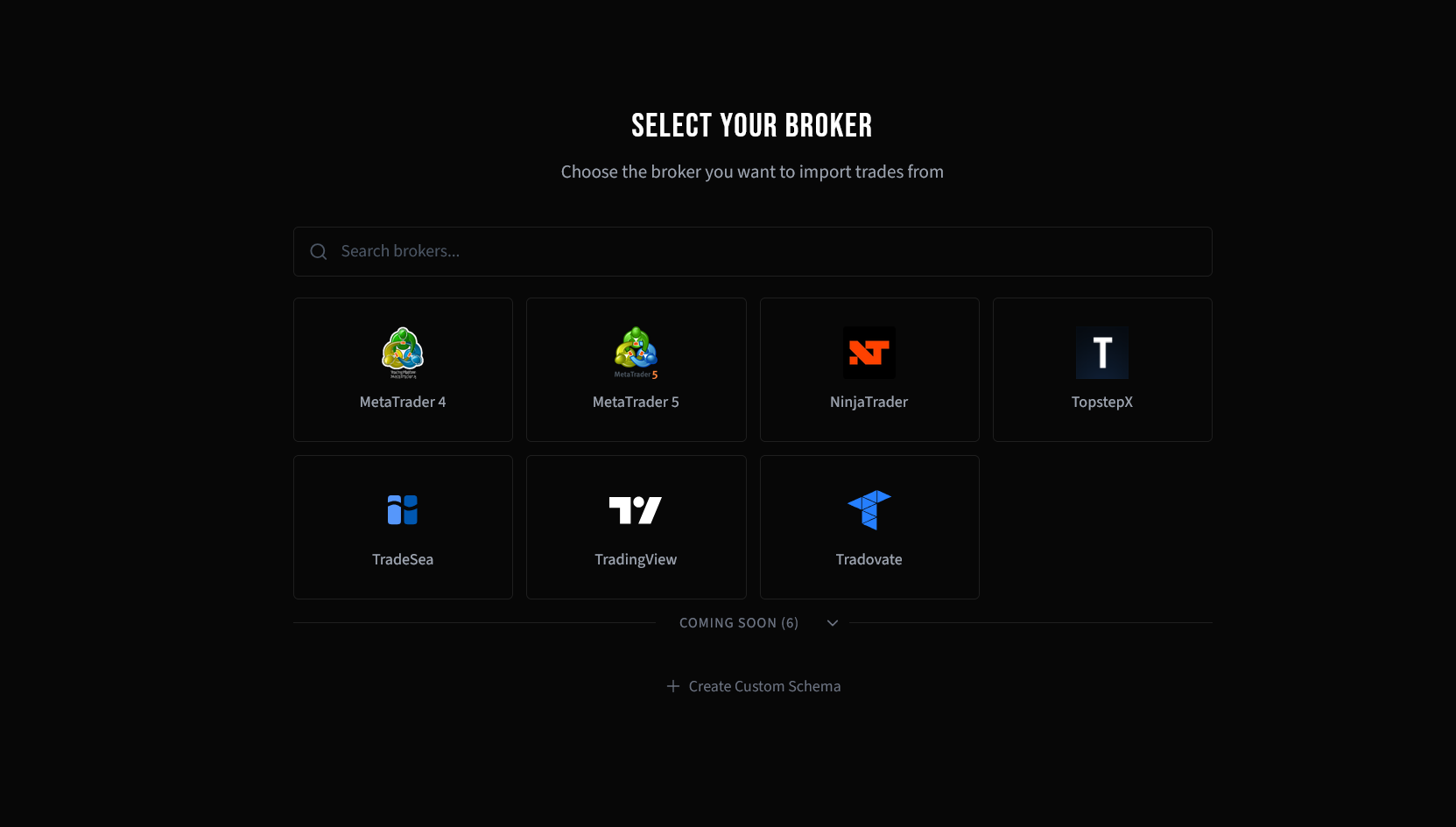
Step 5: Select Your Broker
In Tradavity, go to Settings → Accounts, click Sync on your account, then choose File Import. Select MetaTrader 4 from the broker list.
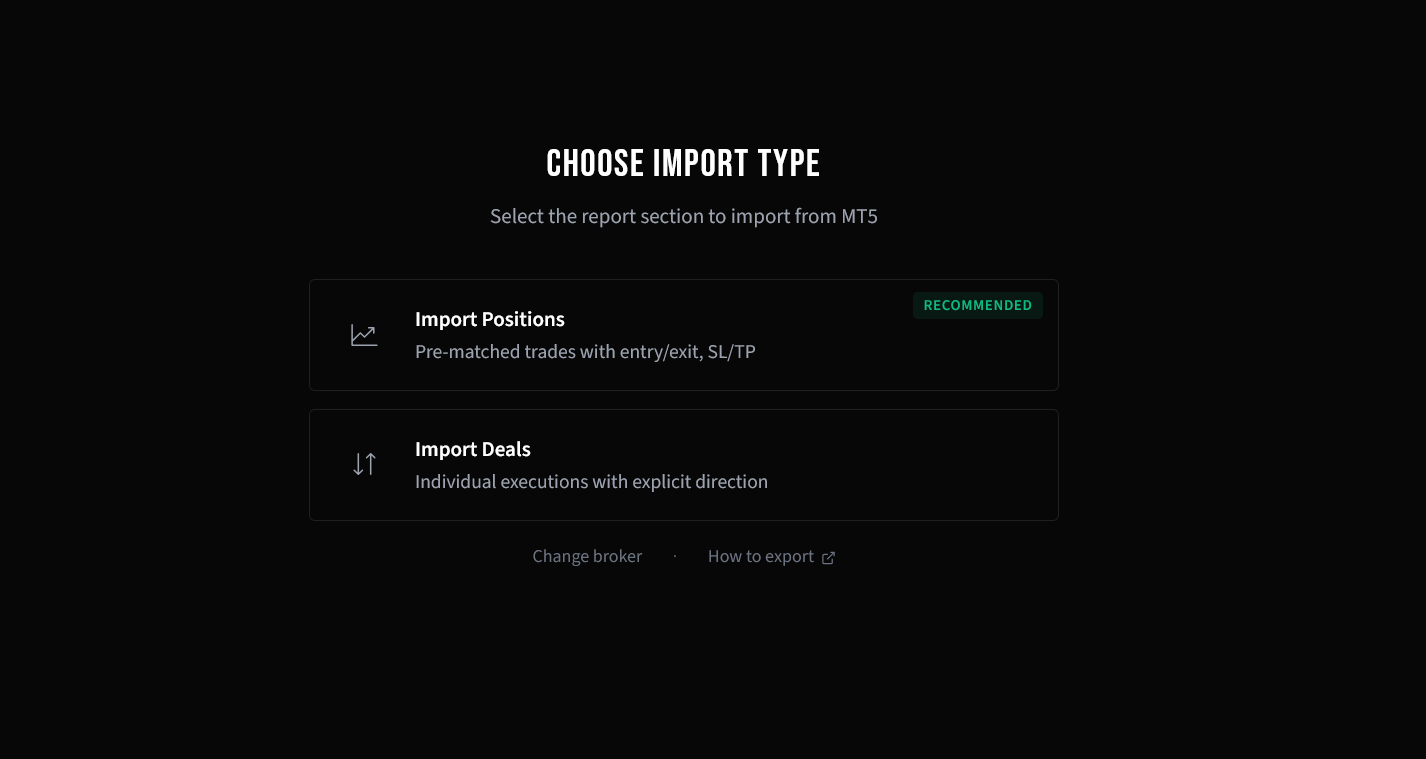
Step 6: Choose Import Type
MetaTrader 4 uses a single HTML report format. This is automatically detected.
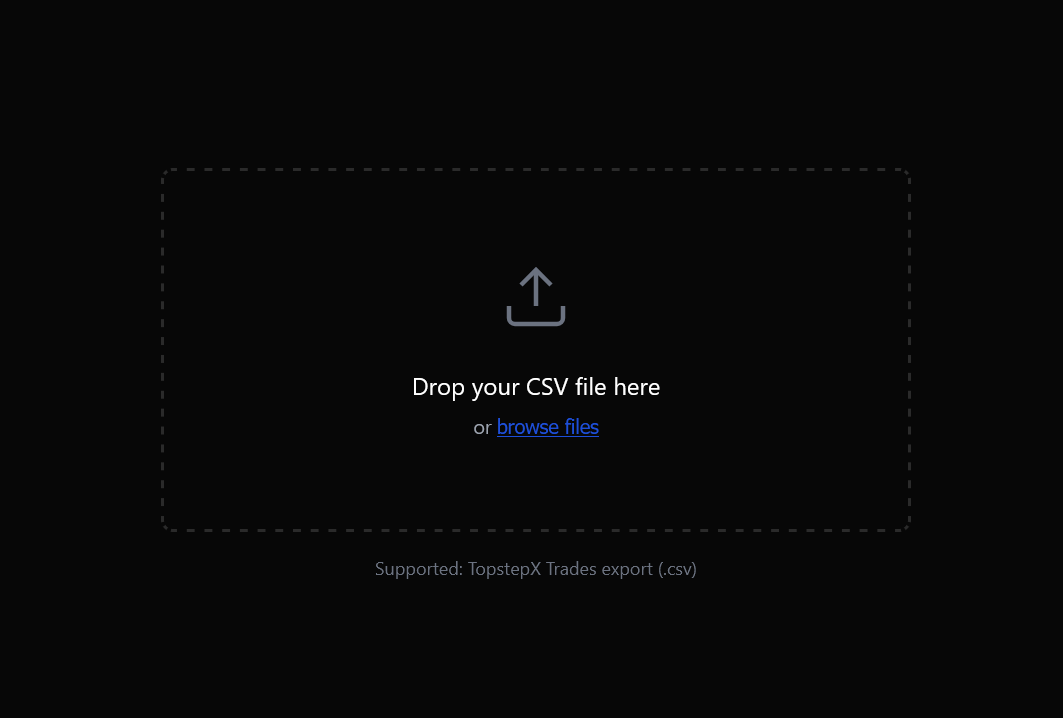
Step 7: Upload Your HTML File
Drag and drop your HTML report file, or click to browse and select it.
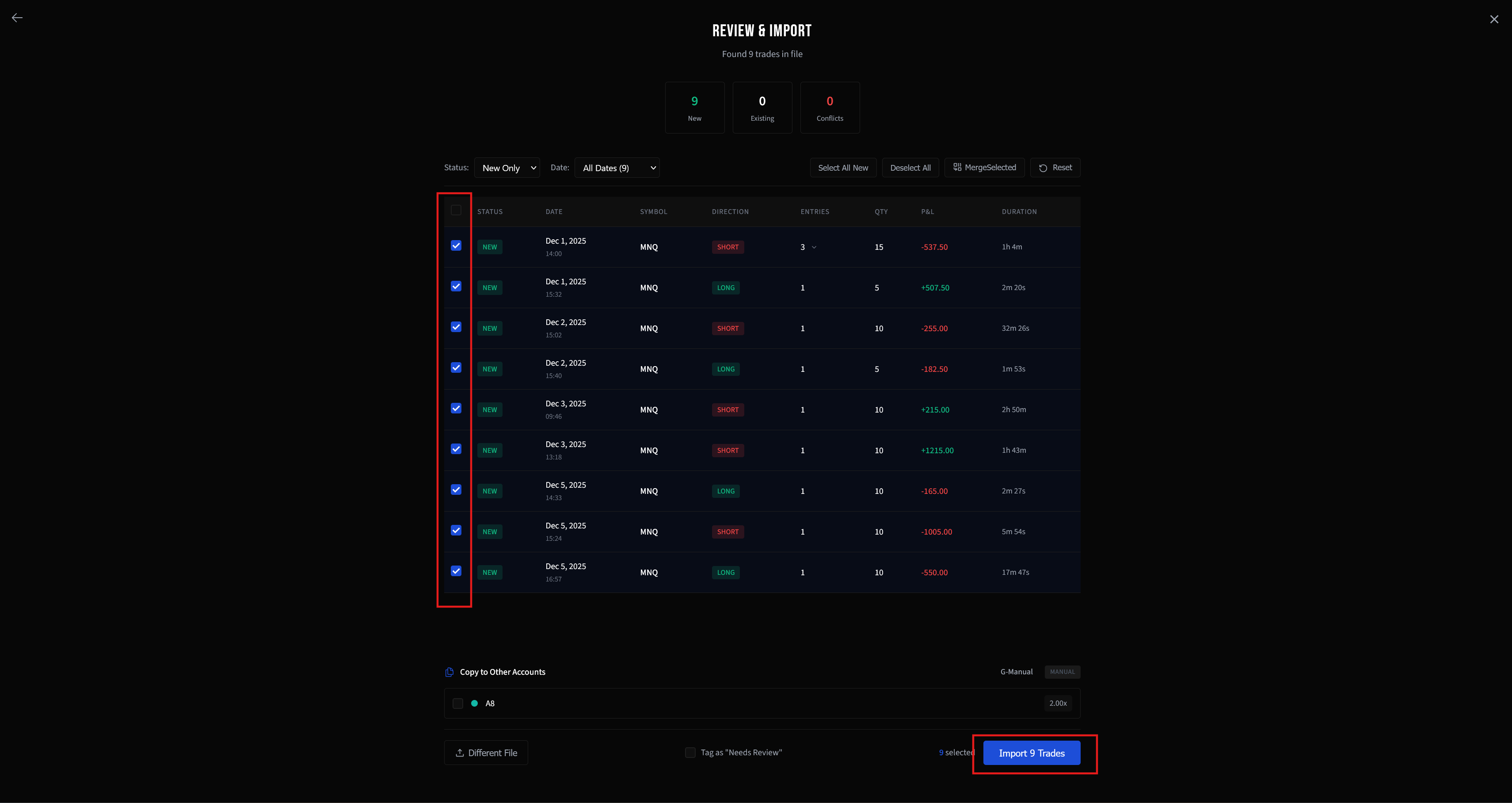
Step 8: Review and Import
Review the parsed trades in the preview. New trades are automatically selected. Check the details, then click Import to add them to your account.
Troubleshooting
Import fails
- Language must be English - Go to View > Languages > English, restart MT4, then export again
- Make sure you're using the HTML file from "Save as Report"
Empty report
Make sure you selected "All History" to include all closed trades. Open positions won't appear.
Wrong broker version
Download MT4 from your specific broker's website, not a generic source.
See CSV Import Troubleshooting for more solutions.