
Browser Extension
The Tradavity browser extension syncs your TradingView trades to your journal in one click. Works with Paper Trading and any real broker connected through TradingView.
This extension reads trade data directly from the TradingView page in your browser (web scraping). It is not affiliated with, endorsed by, or officially supported by TradingView. No data is sent to any third party — it goes directly from your browser to your Tradavity account. If you do not consent to web scraping, use CSV export instead.
Install the Extension
Firefox
Install directly from the Firefox Add-ons store:
Chrome / Edge / Brave
Install from the Chrome Web Store (also works with Edge, Brave, and other Chromium browsers):
The Tradavity icon will appear in your browser toolbar.
Setup & Sync
Step 1: Generate Your API Key
In Tradavity, go to Settings → API. Click Generate Key and copy it (starts with tvty_). Keep your key private.
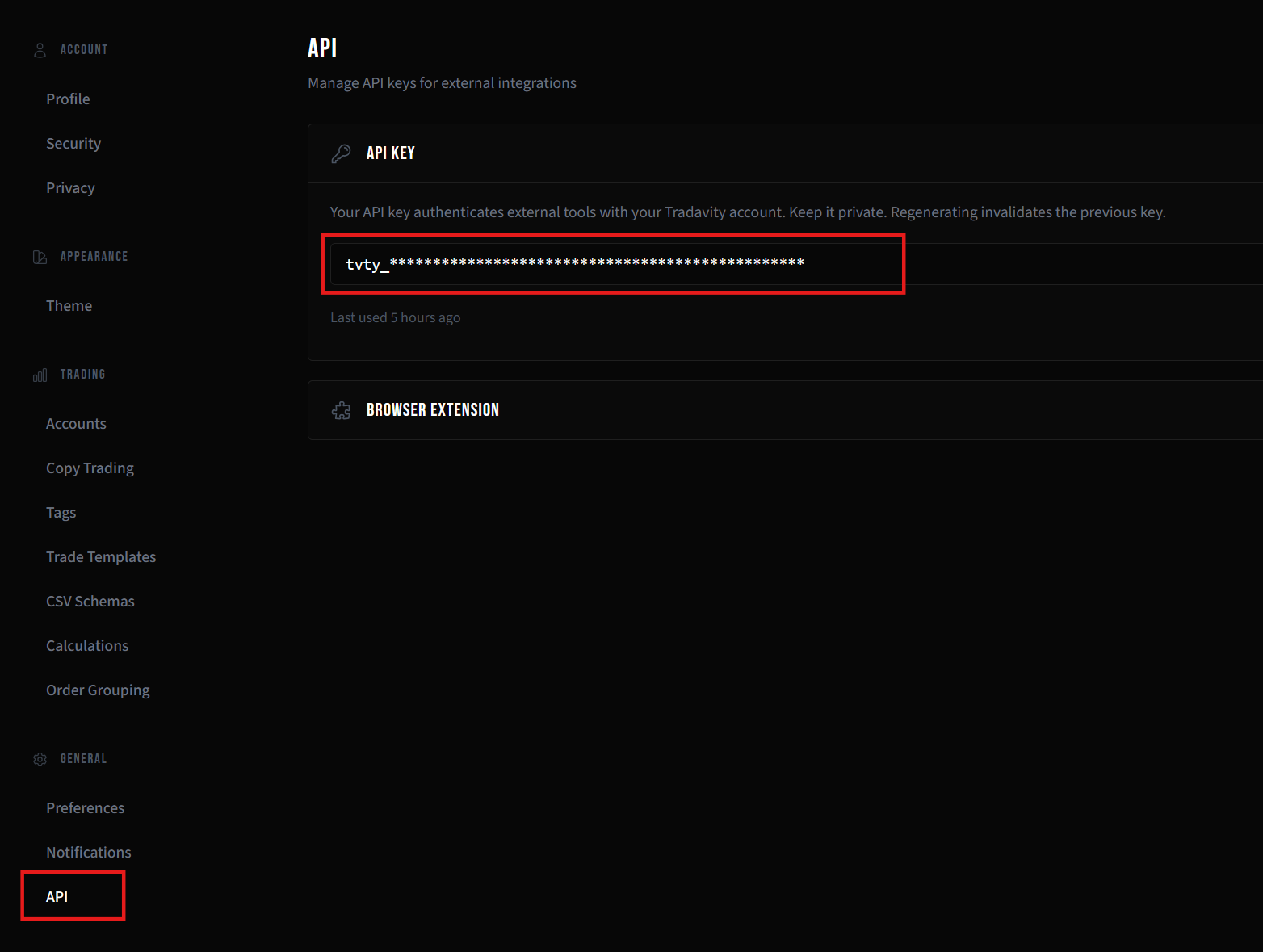
Step 2: Connect the Extension
Click the Tradavity icon in your browser toolbar. Paste your API key and click Connect. Select the trading account you want to sync trades to.
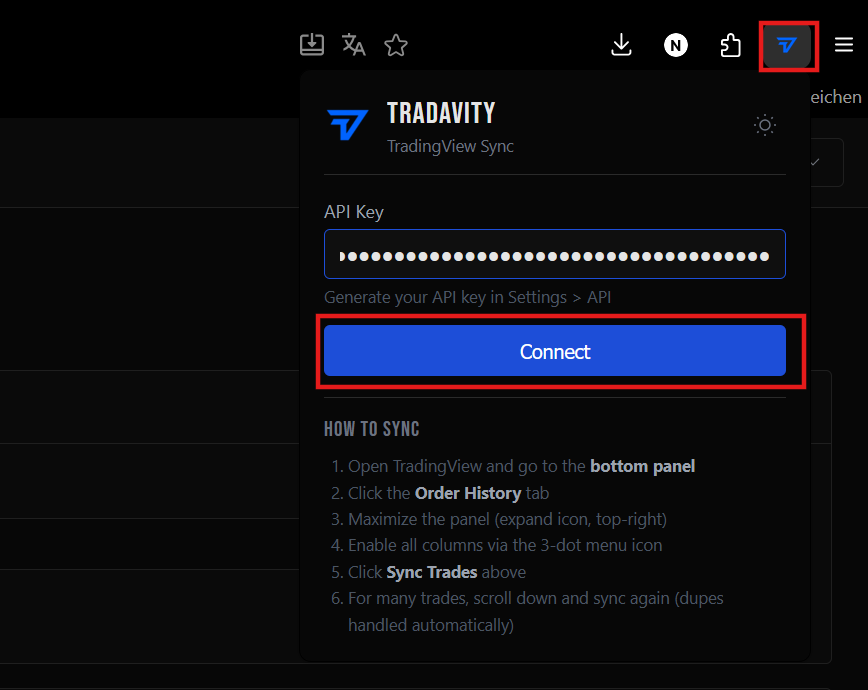
Step 3: Open TradingView Order History
Open TradingView, go to a chart, and open the bottom panel. Click the Order History tab. Make sure all columns are enabled via the three-dot menu.
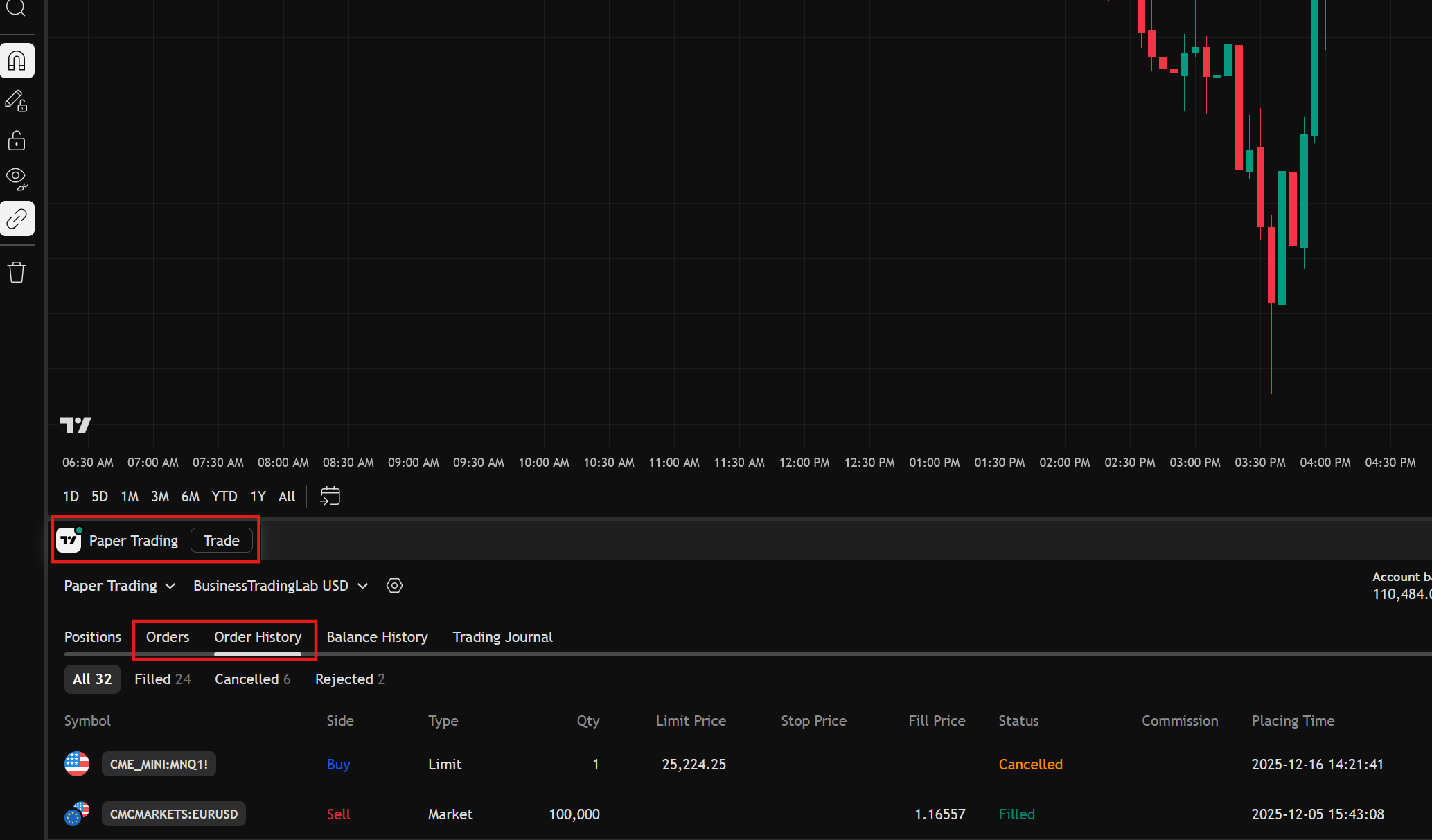
Step 4: Sync Trades
Click the Tradavity extension icon and hit Sync Trades. Your trades are imported instantly. For large histories, scroll down in TradingView to load more rows and sync again — duplicates are handled automatically.
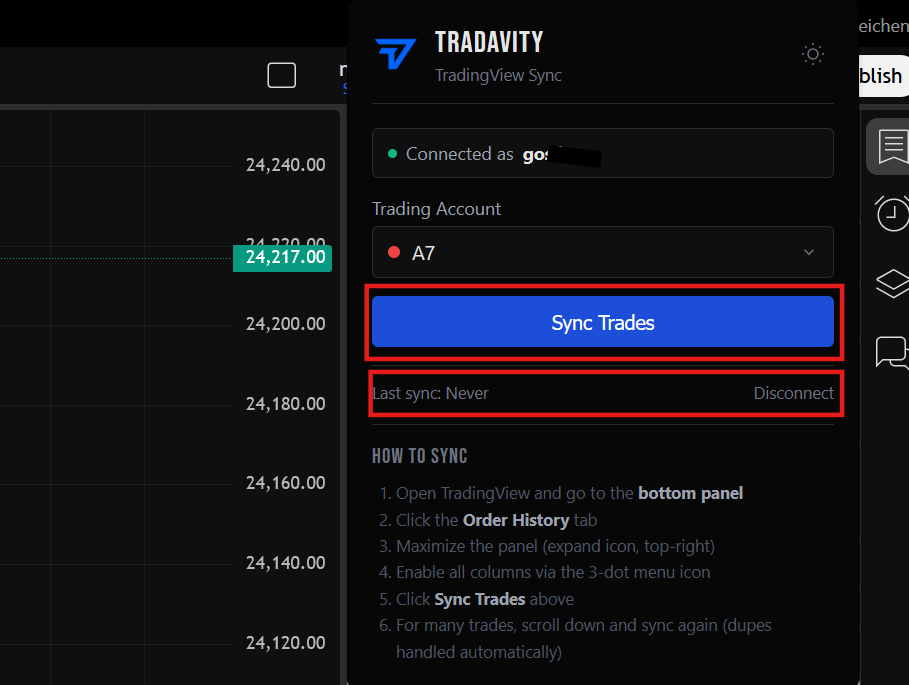
What Gets Imported
| Field | Source |
|---|---|
| Symbol | Normalized automatically (CME_MINI:MNQ1! → MNQ) |
| Direction | Determined from order sequence (Buy/Sell) |
| Entry/Exit prices | From fill prices in the table |
| P&L | Calculated from entry/exit prices with correct contract multiplier |
| Holding time | From order timestamps |
| Stop Loss | From cancelled stop orders or dedicated SL column |
| Take Profit | From filled TP orders or dedicated TP column |
| Fees | From Commission column (real brokers only) |
| Asset type | Auto-detected (futures, forex) |
Supported Brokers
The extension works with any broker connected through TradingView. Column names vary by broker but are detected automatically. Tested with:
- TradingView Paper Trading
- Tradovate / NinjaTrader
- Apex Trader Funding (via Tradovate)
Other brokers (Interactive Brokers, TradeStation, etc.) should work but have not been explicitly tested. If you encounter issues, you can always export to CSV from TradingView and import using the TradingView CSV import method.
Copy Trading
If the account you sync to is in a copy trading group, the same rules apply as other import methods:
- Master mode: syncing to master copies to all child accounts
- Any-to-all mode: syncing to any account copies to all others
- Manual mode: no auto-copy (use the UI to copy manually)
Troubleshooting
Extension shows "0 imported" but trades were parsed
The trades may already exist in your account (duplicate detection). Try importing different trades, or check your journal to confirm they are already there.
Extension cannot access TradingView page
Make sure you are on a tradingview.com page with the bottom panel open. The extension needs the Order History table to be visible.
Wrong symbol or P&L
Ensure all columns are enabled in TradingView (click the three-dot menu icon on the table header). Missing columns can cause incorrect parsing.
Extension disappears after browser restart
If you installed manually before the store listing was available, uninstall the manual version and reinstall from the Chrome Web Store or Firefox Add-ons store for automatic updates.
Data & Security Disclosure
What We Store
- Your API key is stored locally in your browser (browser extension storage) — it is never sent to any third party
- On our server: the API key hash for authentication, and your imported trade data
What The Extension Accesses
- Visible table data on
tradingview.compages (Order History / Orders tab) - No other TradingView data, settings, or account information
What We Cannot Do
- We cannot place orders or execute trades on your TradingView or broker account
- We cannot access your TradingView login credentials
- We cannot modify any data on TradingView
Disconnecting
Click Disconnect in the extension popup to remove your API key. You can also uninstall the extension entirely. To revoke API access on the server side, regenerate your API key in Settings → API.
Tradavity is not affiliated with, endorsed by, or sponsored by TradingView. TradingView is a trademark of TradingView Inc. This extension uses web scraping to read trade data from the TradingView interface. TradingView may change their page structure at any time, which could temporarily break the extension. Use of this extension is at your own risk. See our Risk Disclosure for full details.