
TradeLocker Import Guide
You can connect TradeLocker to Tradavity via Auto-Sync — signed in with your TradeLocker email, password, and server. Trades sync automatically every 15 minutes across forex, crypto, futures, and equity CFDs.
TradeLocker CSV import is not supported yet — Auto-Sync is the only option for now. If you need CSV support for TradeLocker, let us know.
Auto-Sync (Recommended)
Auto-Sync connects to TradeLocker via the public JWT REST API and imports your trades automatically every 15 minutes. Works with both Demo / Paper (challenge accounts) and Live (funded) environments.
Requirements
- A Tradavity PRO subscription
- A TradeLocker account (Demo / Paper or Live)
- Your TradeLocker email, password, and server code — all in the welcome email from your prop firm or broker
Step 1: Choose Auto-Sync
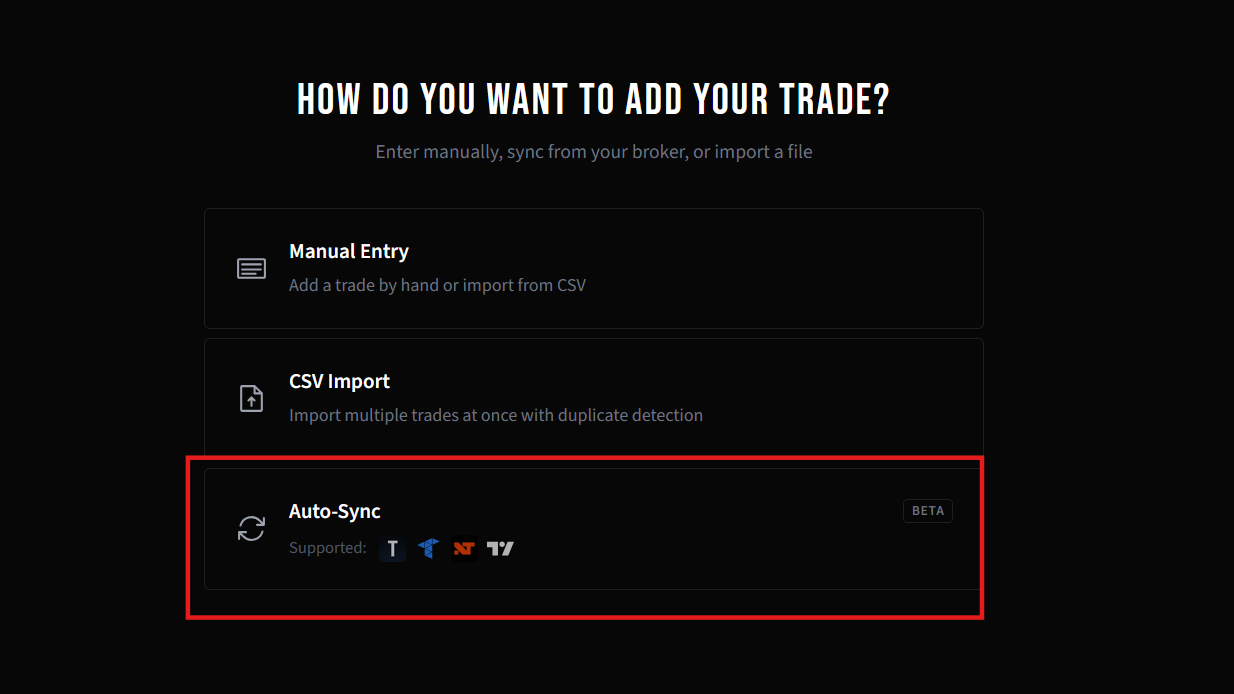
In Tradavity, click Add Trade in the sidebar. Select Auto-Sync to connect your broker.
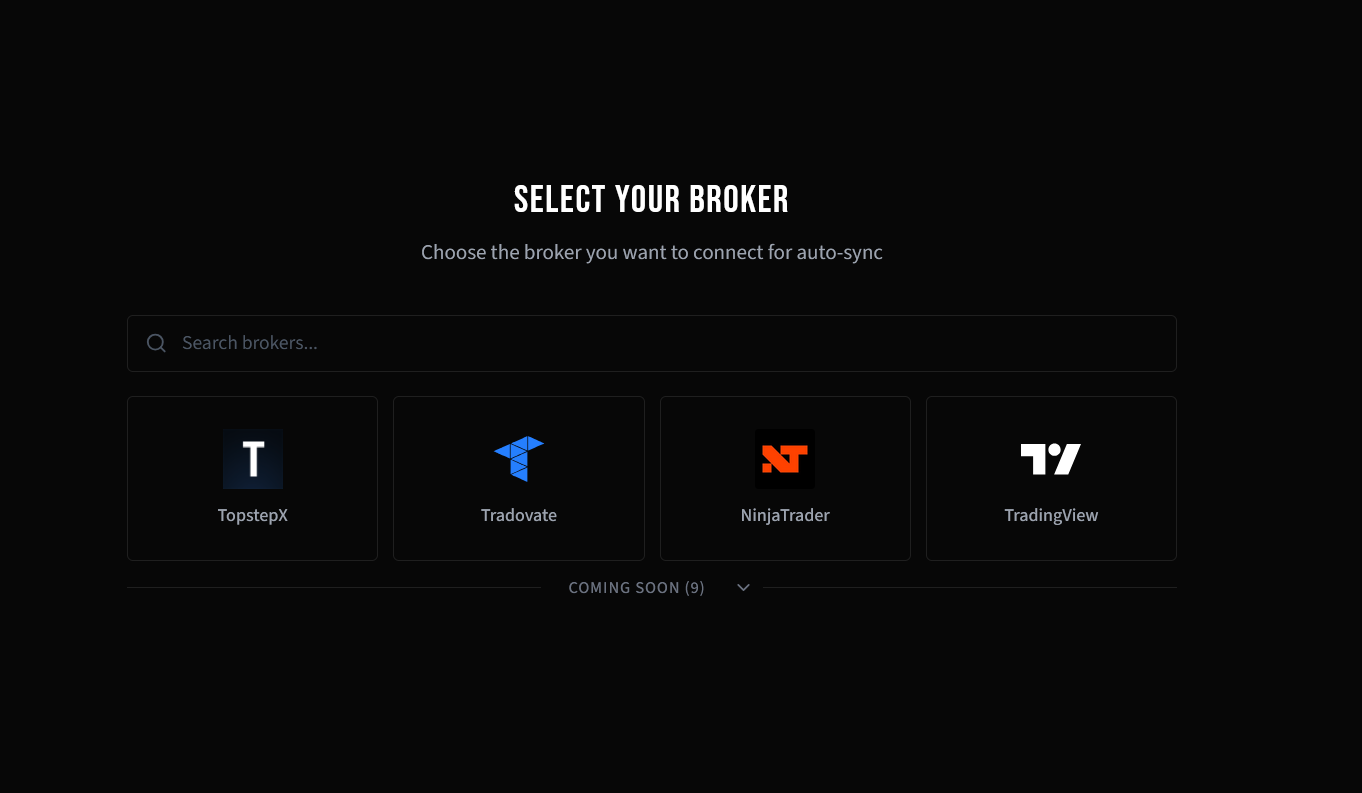
Step 2: Select TradeLocker
Pick TradeLocker from the auto-sync broker picker.
Step 3: Enter Your Credentials
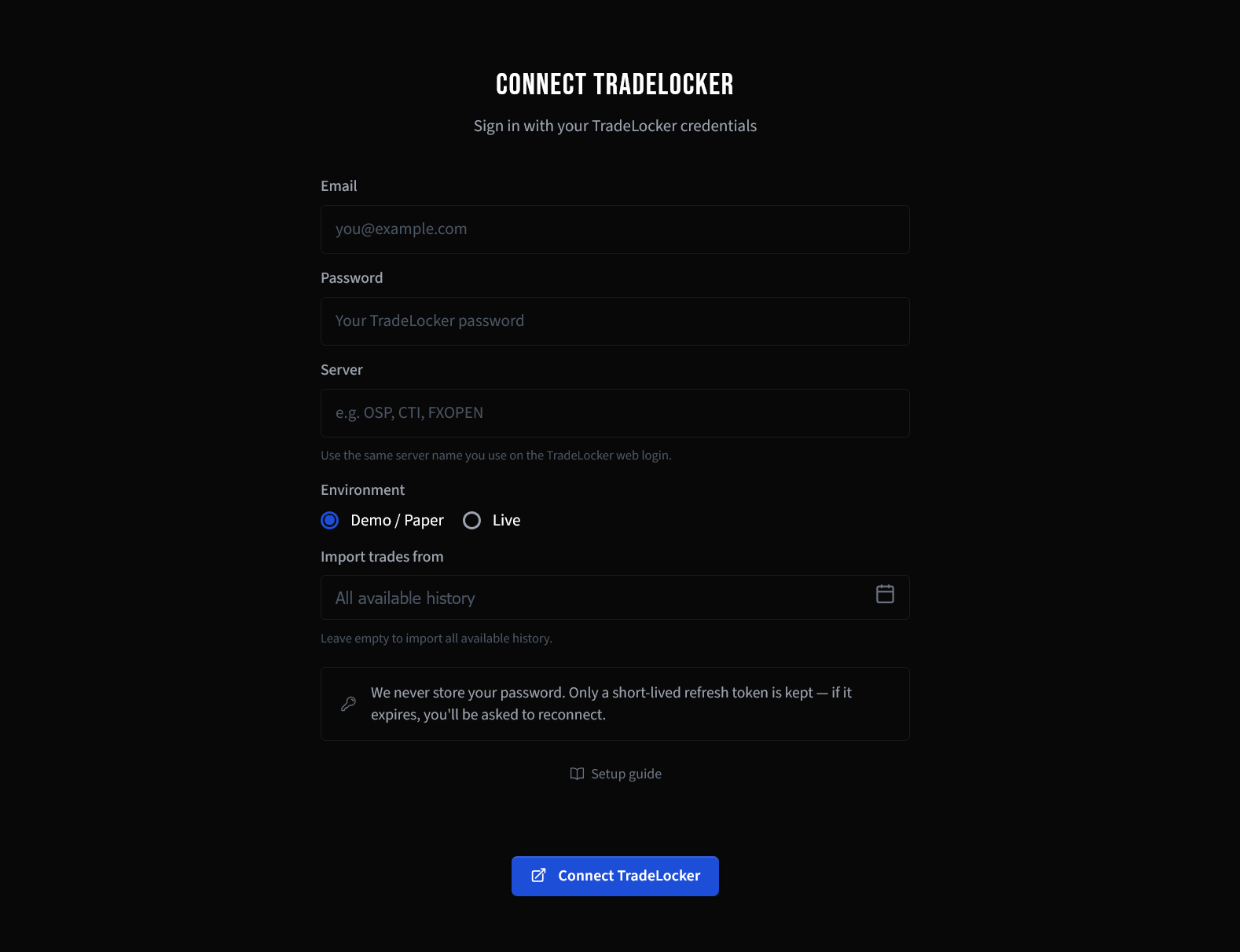
Fill in the four fields:
- Email — your TradeLocker login email
- Password — your TradeLocker login password
- Server — the server code from your welcome email (examples:
OSP,CTI,FXOPEN). Use the same server name you use on the TradeLocker web login. - Environment — pick Demo / Paper for challenge accounts, Live for funded accounts
You can also set an optional start date — leave it empty to import all available history. Click Connect TradeLocker when done.
Your password is exchanged for a short-lived JWT access token plus a refresh token, then discarded. Only the refresh token, your email, and the server name are persisted (all encrypted). If the refresh token expires or is revoked, you'll be asked to reconnect.
Step 4: Select Your Account
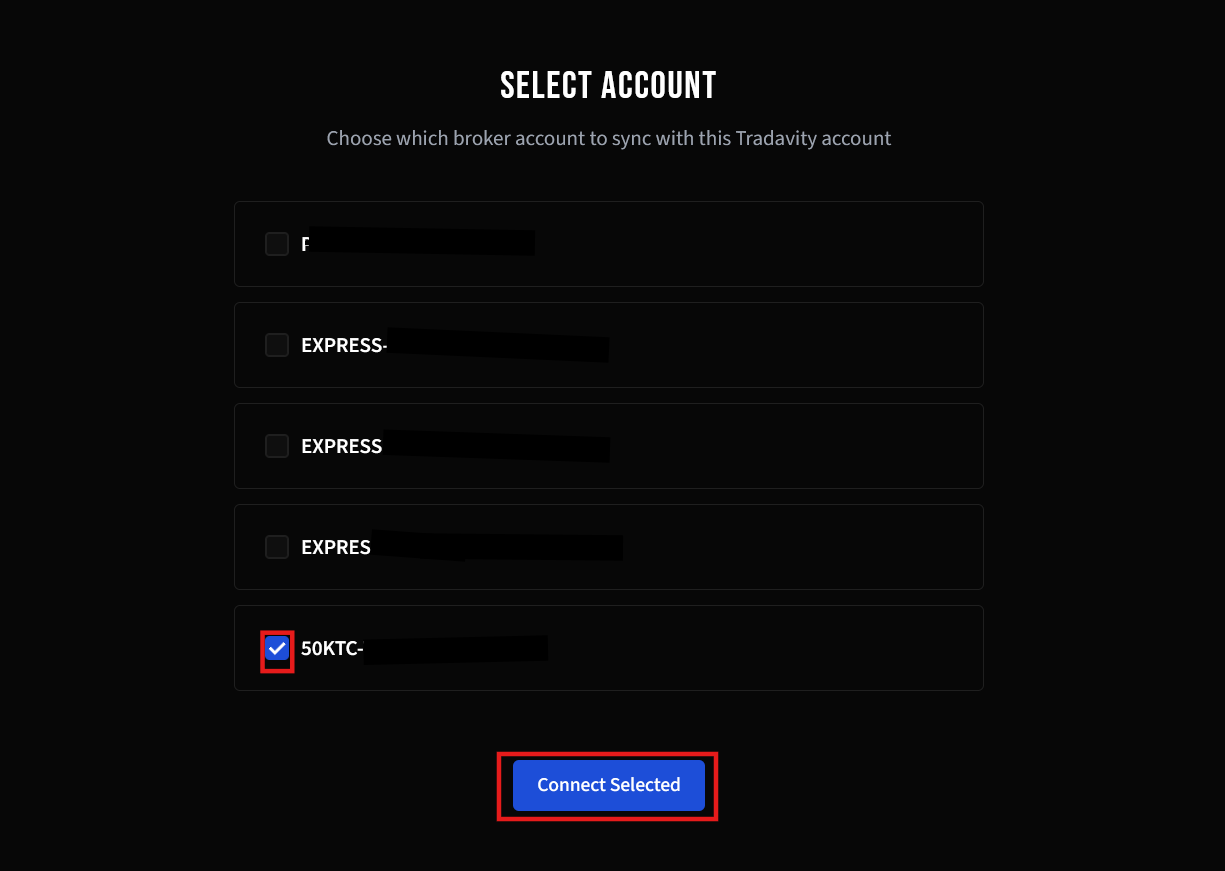
If you have multiple TradeLocker accounts on the profile, pick which one to sync and click Connect Selected. If you have only one, it's auto-selected.
Step 5: Connected
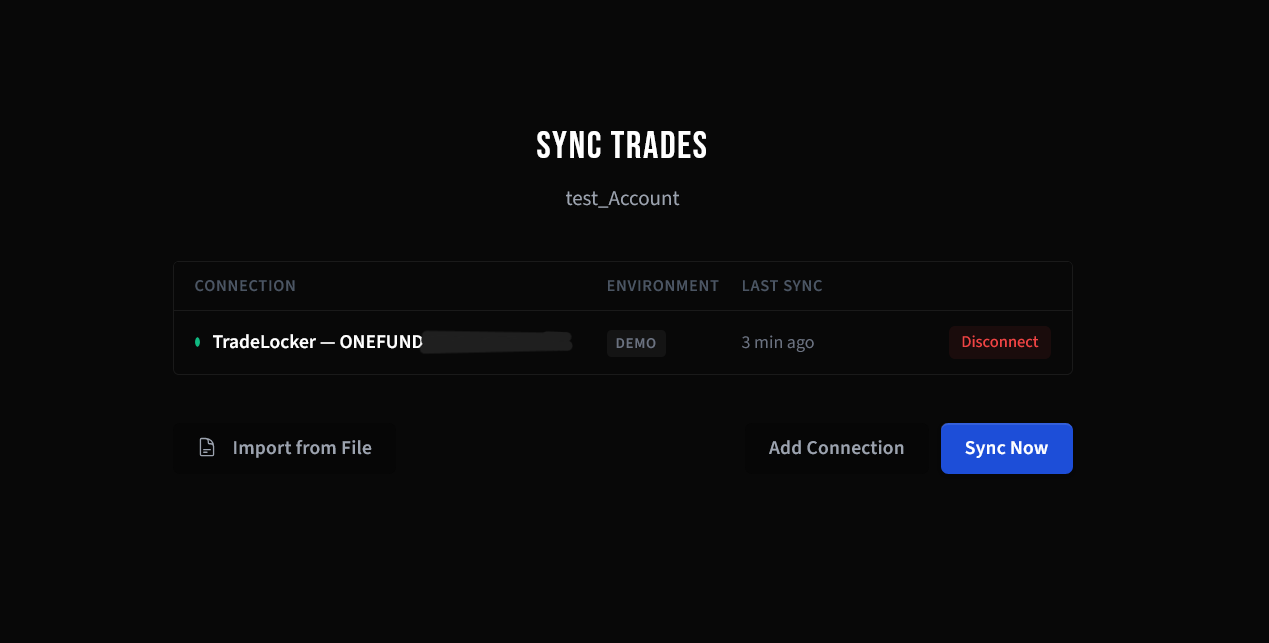
You'll see the sync overview with your active connection. Click Sync Now to trigger an immediate import, or wait for the automatic 15-minute sync. Use Add Connection to link additional TradeLocker accounts, or Disconnect to remove a connection.
What Gets Synced
- All closed trades with entry/exit prices and times
- P&L per trade (computed from price difference × quantity × contract size)
- Stop-Loss and Take-Profit prices from the entry order's bracket (absolute prices only — offset / trailing-offset SL/TPs are not imported)
- Partial fills aggregated per position
- Asset type from TradeLocker's instrument metadata (forex, crypto, futures, or equity CFDs)
How It Works
- Trades sync every 15 minutes automatically
- Click Sync Now any time for an immediate sync
- Duplicate detection prevents re-importing existing trades
- The access token auto-refreshes in the background using the stored refresh token — no manual re-authentication needed
- If the refresh token is revoked mid-sync (for example, another login overlapping), Tradavity automatically refreshes once and retries the failing request before giving up
- If copy trading is configured, synced trades are automatically copied to target accounts
You can connect multiple TradeLocker accounts to the same Tradavity account. Each syncs independently. Use Add Connection in the sync overview to link more.
Each TradeLocker broker account can only be connected to one Tradavity trading account. To sync the same trades to multiple Tradavity accounts, use Copy Trading instead.
Troubleshooting
"Login failed" or "server does not exist"
- The most common cause is a wrong server code. Check your welcome email from the prop firm or broker for the exact server name (examples:
OSP,CTI,FXOPEN). - Make sure you selected the correct environment — challenge / paper accounts live on Demo / Paper, funded accounts on Live.
- Double-check the email and password match what you use to sign in to the TradeLocker web platform.
Sync runs but no trades appear
- Only closed positions are imported. Open positions are skipped until they're closed.
- Check the start date you set when connecting — trades before that date won't be pulled. Edit the connection to widen the window if needed.
- Trades on symbols that Tradavity can't resolve via TradeLocker's instrument list are skipped rather than imported as "UNKNOWN". This is rare but can happen for newly listed instruments — contact support with the symbol if you see this.
Missing fees / commissions
TradeLocker's ordersHistory endpoint does not expose fee data in v1. Synced trades come in with fees = 0. You can add fees manually after import by editing the trade.
"Session expired. Please reconnect."
This happens when the refresh token is no longer valid — usually because the password was changed on TradeLocker, the account was logged in from another device with a token-invalidating action, or the token simply expired. Reconnect from Settings → Accounts with your current credentials.
If something isn't behaving as expected, contact support with your account email and a description of the issue.
Data & Security Disclosure
What We Store
- A refresh token issued by TradeLocker, your email, and the server name — all stored encrypted (AES-256-CBC) so the connection can refresh without asking for your password again.
- A short-lived JWT access token used for API requests. It is rotated automatically as it expires.
- Your password is never persisted. It is sent once to TradeLocker's auth endpoint, exchanged for the tokens above, and discarded immediately.
What We Access
- Your closed-order history (price, quantity, side, timestamps, position ID)
- Your account list (account ID, account number, name, currency)
- Your instrument list (symbol, name, asset type) for symbol resolution
- API configuration (column order and rate limits)
What We Cannot Do
- We cannot place orders or execute trades on your account
- We cannot modify SL / TP / pending orders or any account settings
- We cannot transfer funds or change passwords
- The TradeLocker API surface we use is read-only by design — this is enforced by TradeLocker, not just by Tradavity
Disconnecting
You can disconnect your TradeLocker account at any time from Settings → Accounts. Disconnecting immediately and permanently deletes the stored refresh token, email, and server name from Tradavity.
Tradavity is not affiliated with, endorsed by, or sponsored by TradeLocker or any prop firm or broker that distributes TradeLocker accounts. This connection only grants read-only access to your trade history and account metadata. We do not have any trading, transfer, or account modification permissions. Tradavity is not responsible for any actions taken on your TradeLocker account, any data discrepancies, or service interruptions. Use of this integration is at your own risk and subject to TradeLocker's Terms of Service. See our Risk Disclosure for full details.